Stata Improved Editor
Improved Stata Editor for macOS/Windows : a sublime text plugin
Installations minus removals
Upgrades
- 4,086 installs
- 49 stars
- Only for macOS
Links
Versions
2.0.2
·
Stata Improved Editor for Sublime Text (macOS & Windows)
Stata Improved Editor is a polished Sublime Text plugin built to deliver a highly productive Stata do-file workflow on macOS and Windows.
It supports Stata 13–19 (including StataNow) and Sublime Text 4 (and 3), with streamlined shortcuts for sending code to Stata, cell-style execution, snippets/templates, comment toggles, and Stata/Mata syntax highlighting.
Note: To get started, please install Sublime Text. After installing (or updating) this package, please restart Sublime Text so that all commands and key bindings load correctly.
- Available via Package Control since 16 Jan 2017.
- Maintained by Zizhong Yan. Last updated: 27 Nov 2026. Feedback is welcome.
- Contributors: Zizhong Yan, and Dailin Ren.
🎼 News 🎼
v2.0.0 (27/Nov/26): Sublime Text 4 (Python 3.14 plugin host) and Windows support. On Windows, code is typed into Stata's Command window; no setup needed (see Windows setup). Key bindings now only apply in Stata files; $ alone types $ again; CMD+/ without a selection comments the line with //; the Stata version can be pinned in the settings. Fixes for one-letter words, unsaved files and temporary files (#37, #38, #39).
v1.3.19 (01/Jan/26): Full support for Stata 19 and StataNow is made.
v1.3.17 (29/Apr/23): Full support for Stata 18 is made.
v1.3.10 (11/May/21): Full support for Stata 17 as well (in progress). Now one can select any word, press $ to make it as ${word}. And select ${word}, press $ to make it as word. Select any word, press CMD +/ to make the selected word toggled. And press CMD +/ again to make toggled word to original word.
🏆 Main Features
1, Execute the selected do-file
2, Split the do-file into cells, and execute a block of do-file (just like what you do in Matlab) !!
3, Automated way to write Comments toggle, create a Fancy Section Header, and a To Do List.
4, Automatic template for i) writting common used commands, ii) for loops, iii) writing program.(We are updating/incorprating more templates/snippets for Stata commands.)
5, Select any word, press `, it will become 'word'.
6, Select any word, press $, it will become ${word}.
7, Select any word, press cmd+/, it will become /* word */.
8, Select any command, press F1 to see its help file.
9, Select any variable(s), press F2 to see the data browser.
10, Press F5, insert the current date and time in the code.
11, Stata and MATA Syntax-highlighting
12, Stata 15 Markdown Document support.
💿 Installations
Firstly you need to install Sublime Text (Sublime Text 4 is recommended; Sublime Text 3 still works).
Installation via packge control. (easiest and recommended🏅)
The installation is very simple as this package has been accepted by the Sublime Text package manager. There are 3 steps:
- Open Sublime Text, from the main application menu, navigate to
Tools, open theCommand Palette(shortcut: CMD+SHIFT+P on macOS, CTRL+SHIFT+P on Windows) - Select
Package Control: Install Package - Search
Stata Improved Editorand hit Enter to complete installation.
If you could not find the package control in your Sublime Text, you will need to install it in advance. To install it, please go to this webpage.
Note that though the trial version of Sublime Text is untimed and unlimited, the license need be purchased.
Manual installation
Open Sublime Text, click the Preferences-> Browse Packages-> Then you will reach the Packages folder (e.g. ~/Library/Application Support/Sublime Text/Packages on macOS, %APPDATA%\Sublime Text\Packages on Windows). Download this Stata plugin from here, and unpack the zip fil into that folder, and rename it as "Stata Improved Editor".
macOS setup
Nothing to configure in Stata itself: install Stata (13 or later) and open it once. The first time you send code, macOS asks whether Sublime Text may control Stata (System Settings > Privacy & Security > Automation); allow it. Then open a .do file, select some lines (or none, for the current line) and press CTRL+d. If you have several Stata versions installed, pick one with "stata_version".
Windows setup
Nothing to set up: the plugin types the code into Stata's Command window (Stata may be minimized or busy; it does not need the focus). If no Stata is running, the newest installed Stata is started. If Stata is installed in an unusual folder, set "stata_path" in Preferences > Package Settings > Stata Improved Editor > Settings.
Notes for Windows:
- This was developed and verified with Stata 18 (MP, Chinese user interface). Other versions should work, but the plugin relies on how Stata lays out its main window; if it cannot find the Command window it tells you so.
- A user name with non-ASCII characters (e.g. Chinese) is fine. Only if Stata is minimized and the temporary folder's path contains non-ASCII characters, the plugin needs Stata 14 or later. (To avoid that entirely, set
"temp_directory"to a folder with an ASCII-only path.) - If Stata runs as administrator, Sublime Text has to run as administrator too (Windows blocks input to a higher-privileged program).
Alternatively, "windows_method": "automation" uses Stata Automation (run Stata Improved: Register Stata Automation (Windows, optional) once). Be aware that Stata then closes when Sublime Text lets go of it (some minutes after Sublime Text exits), without asking to save your data.
🎷 Usage
⌨️ Key bindings
All key bindings only apply in Stata files (.do, .ado).
| Action | macOS | Windows |
|---|---|---|
| Do selection / current line | CTRL+d or CMD+Enter | CTRL+d or CTRL+Enter |
| Run selection / current line quietly | CTRL+r | CTRL+r |
| Do the block around the cursor (or the whole file) | CTRL+SHIFT+d | CTRL+SHIFT+d |
| Insert a break line | CTRL+s | CTRL+k, CTRL+s |
| Help for the selected command | F1 | F1 |
| Data Browser for the selected variables | F2 or CTRL+ALT+b | F2 |
Toggle /* */ (selection) or // (line) |
CMD+/ | CTRL+/ |
Word under the cursor → `word' |
CTRL+ALT+` (selected text: `) | ALT+` |
| Insert date and time | F5 | F5 |
On Windows, CTRL+d, CTRL+r and CTRL+SHIFT+d follow Stata's own Do-file Editor, so in Stata files they replace Sublime's Quick Add Next, Goto Symbol and Duplicate Line. Change them in Preferences > Package Settings > Stata Improved Editor > Key Bindings.
On macOS, CMD+` is left to the system (switch windows), and F2 is also Sublime's Next Bookmark: to get that back in Stata files add { "keys": ["f2"], "command": "next_bookmark" } to your own key bindings, or use CTRL+ALT+b for the Data Browser. To drop the replace template, delete replace.sublime-snippet or override its trigger.
New optional settings: cd_to_file_directory (make the file's folder Stata's working directory), send_whole_lines (send whole lines even if only part is selected) and local_macros_persist (keep local macros between sends).
Further tips:
- Multi-select (e.g. every occurrence of a variable) is a Sublime Text feature: select the word and press CMD+d repeatedly (CTRL+d on Windows/Linux, which this package uses in Stata files, so use ALT+F3 there to select all occurrences).
- Highlight more commands: run
Stata Improved: Highlight Additional Commandsfrom the Command Palette and enter e.g.esttab reghdfe(kept in thecustom_commandssetting). - Macros have their own color scope (
variable.other.macro) for both`local'and$global/${global}, so a color scheme can show them alike. - Your own snippets: save a
.sublime-snippetfile inPackages/Userwith<scope>source.stata</scope>and a<tabTrigger>, then type the trigger and press Tab. A snippet that appears in the completions list but does nothing usually has broken XML, e.g. a doubled closing tag such as</scope>scope>.
🎷Code Execution
CTRL+d -- Execute (do) selected codes. As opposite to "do" the code by CTRL+d, CTRL+r can "run" the code quietly in Stata.
Note that if no code is selected, the current line of the code will be sent to Stata.
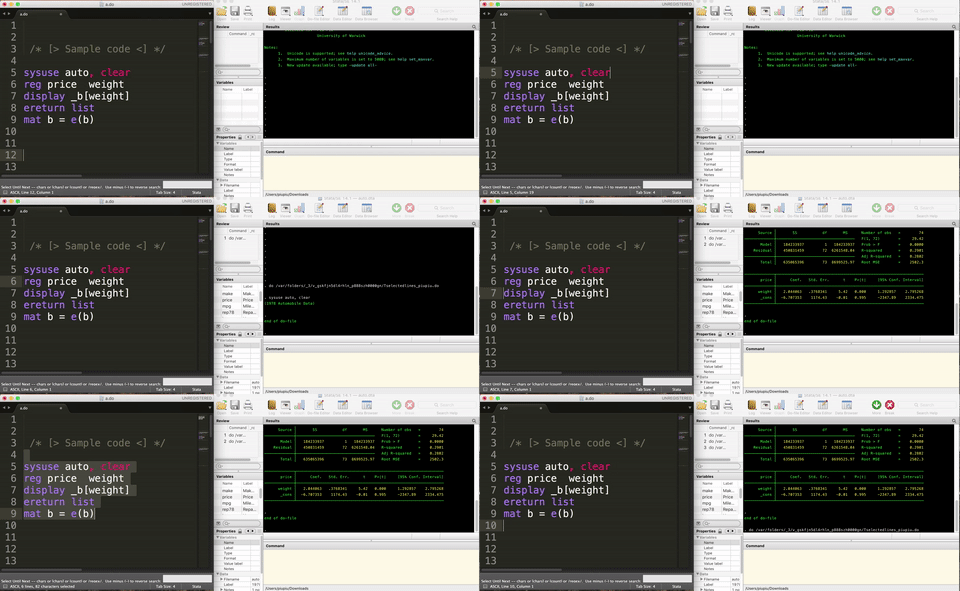
🎷Matlab Style Execution for a Block
Say, you have the following do-file:

The "break line" can be simply inserted by CTRL+s (Windows: CTRL+k, CTRL+s).
Put the cursor within a block, click CTRL+SHIFT+d to execute this block.
🎷Run the whole do-file (NEW)
If there is no code blocks are defined by the aforementioned "break line", clicking CTRL+SHIFT+d could execute the whole script.
🎷Section Header, Comments toggle, and To Do List.
Type comm-s, you will have a section header:

🏊 you might also try comm-subsec to trigger a sub-section header.
Type comm-l, you will insert a line of comments:
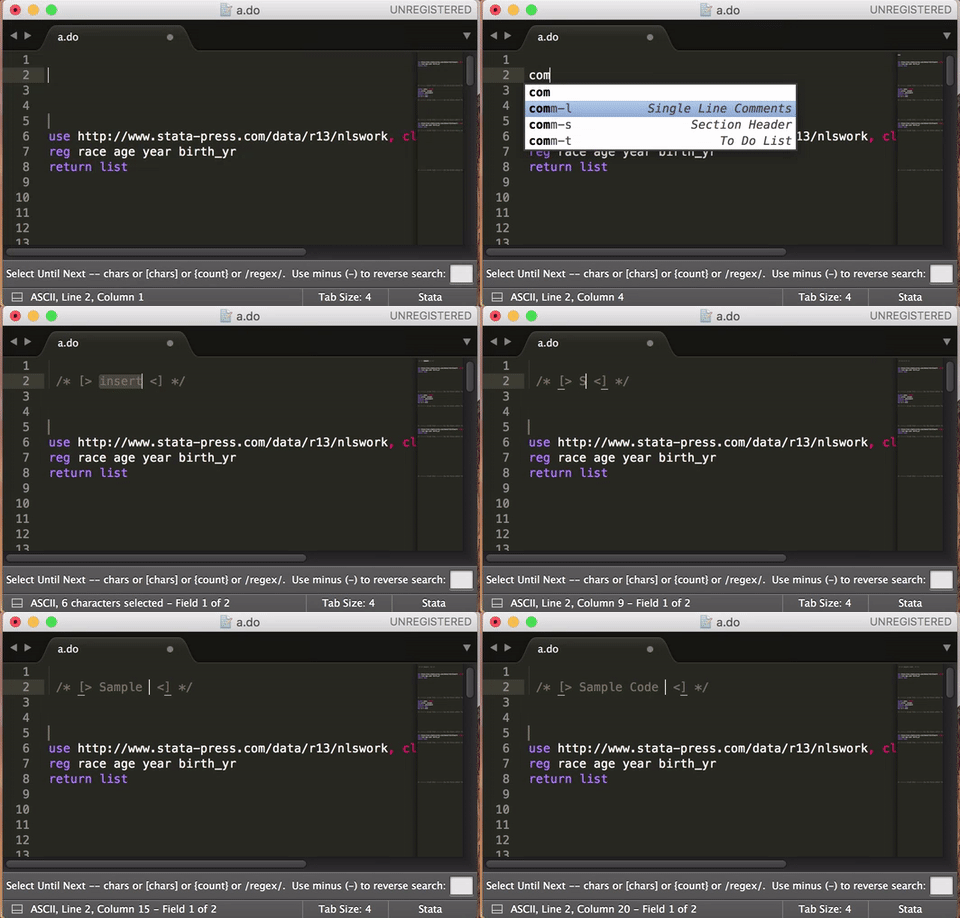
Type comm-t, you will insert to do list:
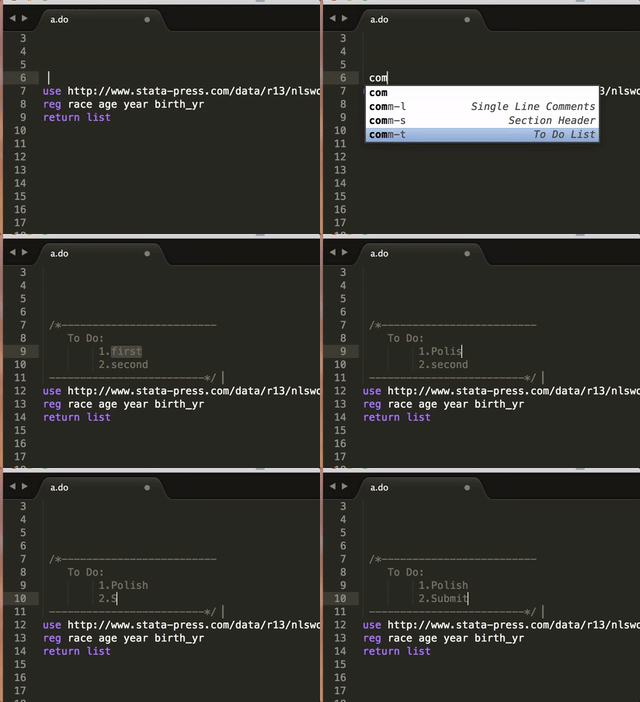
Remember to press TAB to fill up these templates!!!
🎷For loops template
Type for..., you will trigger a auto-completed for loop template, such as:
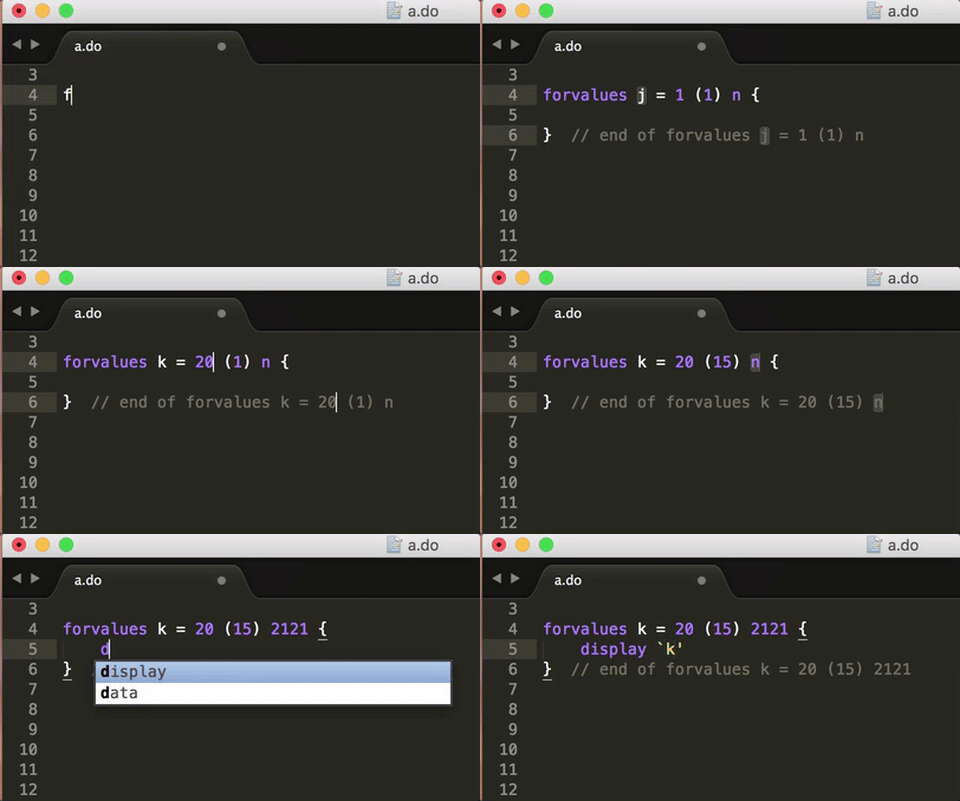
Remember to press TAB to fill up this template.
🎷Write a program
Type prog..., you will trigger:
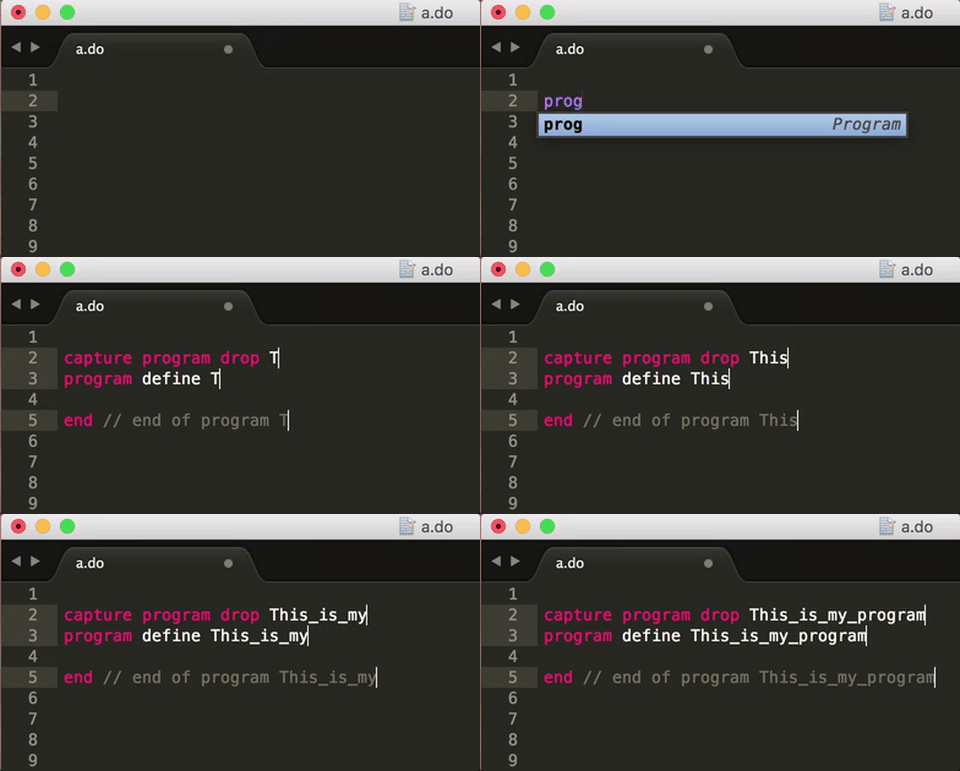
Press TAB define the name of the program.
🎷Commands auto-completion
We are updating/incorprating more templates/snippets for Stata commands.
Current, there are a few auto-completions. For instance, when type merge, you will trigger
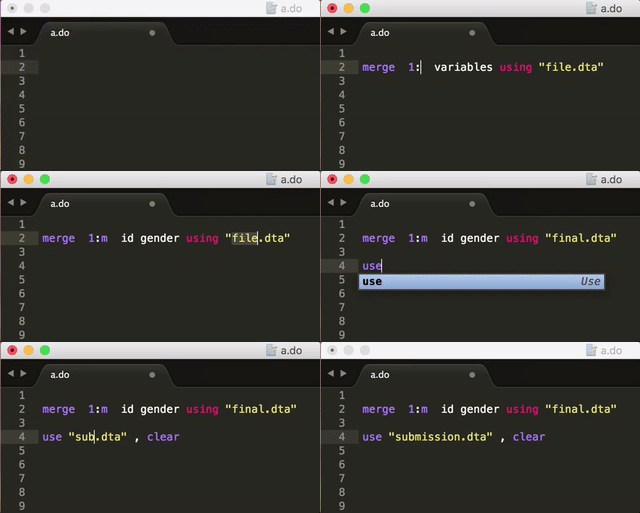
Again, press TAB to fill up this template.
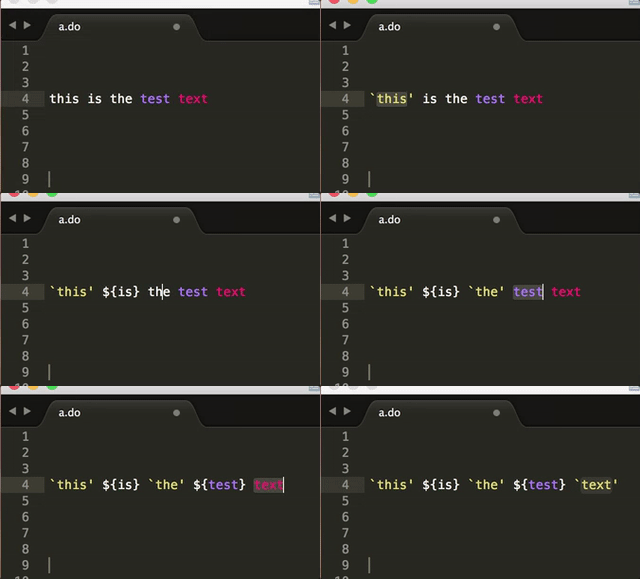
🎷Macros - Local and Global
Select any word, press ` to make it as 'word'.
Select any word, press $ to make it as ${word}. And select ${word} press $ to make it as word.
🏊New: If you did not select any word but put the cursor in a word, then pressing CMD+` can also make it as 'word'.
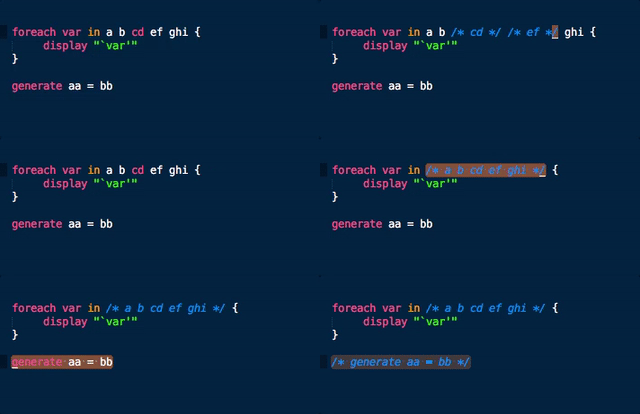
🎷Toggle comments
Select any word, press CMD +/ to make the selected word toggled.
And press CMD +/ again to make toggled word to original word.
🎷Help File
Select any command, press F1 to see the help file.
🎷Data Browser
Select any variable(s), press F2 to see the data browser.
🎷DEMO (YouTube)
https://www.youtube.com/watch?v=4vvsk8lG6fY&t=389s
Multiple Instances of Stata
macOS: If you openned multiple instances of Stata, please note that this plugin will send the code to your MOST RECENTLY OPENNED Stata session.
If different versions of Stata are installed in your Mac (e.g. both Stata 14 and Stata 15), the plugin will send code to the most updated version of Stata (i.e. Stata 15). To use another version, set e.g. "stata_version": 17 in Preferences > Package Settings > Stata Improved Editor > Settings.
Windows: code goes to the Stata window that is on top of the others, i.e. the one you used most recently (a minimized Stata counts last). If no Stata is running, the newest installed Stata is started (or the one set in "stata_path"). If you start Stata yourself and send code right away, the plugin waits for that Stata instead of starting a second one.
Background information:
1, This plugin is motivated by the article "Some notes on text editors for Stata users" By Nicolas J. Cox, and some part of the code is motivated and modified based on following packages: StataEditor for the auto-completion, and [StataEnhanced by Andrew Heiss] (https://github.com/andrewheiss/) for the AppleScript. ).
This plugin basically creates a temporary do-file, which is then sent to the Stata to execute. Temporary do-files are kept in a StataImproved folder inside the system temp directory and removed after a day.
2, This package supports macOS (AppleScript) and Windows (typing into Stata's Command window; optionally Stata Automation). Linux is not supported yet.
3, This plugin has been tested on macOS Monterey and (Windows 11, Sublime Text 4 build 4215) with Stata 18; it is meant to support Stata 13-19 (StataNow) SE/MP/IC.
🎼 Update history 🎼
v2.0.0: Sublime Text 4 and Windows support; key bindings scoped to Stata files; fixes #3 (local_macros_persist), #9, #19, #20 (cd_to_file_directory), #21, #24, #25 (send_whole_lines), #27, #28 (and its duplicate #32), #29, #30, #34, #35, #37, #38, #39; docs for #14, #26, #31.
v1.3.19 (01/Jan/26): Full support for Stata 19 and StataNow is made.
v1.3.17 (29/Apr/23): Full support for Stata 18 is made.
v1.3.10 (11/May/21): Full support for Stata 17 as well (in progress). Now one can select any word, press $ to make it as ${word}. And select ${word}, press $ to make it as word. Select any word, press CMD +/ to make the selected word toggled. And press CMD +/ again to make toggled word to original word.
v1.3.9 (12/Sep/20): Full support for macOS Catalina & Stata 13, 14, 15 and 16 SE/MP/IC.
v1.3.7 (01/Aug/19): Full support for Stata 13, 14, 15 and 16 SE/MP/IC.
v1.3.4 (28/May/18): Some minor corrections. Also thanks for WildGunman's suggestion on the package config directories.
v1.3.3 (12/Aug/17): CTRL+r can run the code quietly in Stata (as opposed to do it noisily by CTRL+d). Thanks a lot for Andrea Discacciati's suggestions.
v1.3.1 (05/Aug/17): Stata 15 introduced the Markdown Document feature which allow users to convert their narrative text, code and outputs into a elegantly formatted document (e.g. Word, PDF, or HTML files). In this update, we provide the snippests and syntax highlighting for users to code the Stata markdown script efficiently (Many thanks for PJ Paul's suggestions). Please click here to see how to use it.
v1.3.0 (04/Aug/17): Full support for Stata 13, 14 and 15 SE/MP/IC.
v1.1.2 (08/Jun/17): The shortcut CTRL+SHIFT+d can also be used to execute the WHOLE do-file if no Matlab-style code blocks are defined. Many thanks for Alvaro Carril's suggestion on this!
v1.1.0 (14/Feb/17): We fixed the ctrl+d problem for users installed via package control!
License
MIT License
Copyright (c) 2016-2026 Zizhong Yan and contributors
Permission is hereby granted, free of charge, to any person obtaining a copy of this software and associated documentation files (the "Software"), to deal in the Software without restriction, including without limitation the rights to use, copy, modify, merge, publish, distribute, sublicense, and/or sell copies of the Software, and to permit persons to whom the Software is furnished to do so, subject to the following conditions:
The above copyright notice and this permission notice shall be included in all copies or substantial portions of the Software.
THE SOFTWARE IS PROVIDED "AS IS", WITHOUT WARRANTY OF ANY KIND, EXPRESS OR IMPLIED, INCLUDING BUT NOT LIMITED TO THE WARRANTIES OF MERCHANTABILITY, FITNESS FOR A PARTICULAR PURPOSE AND NONINFRINGEMENT. IN NO EVENT SHALL THE AUTHORS OR COPYRIGHT HOLDERS BE LIABLE FOR ANY CLAIM, DAMAGES OR OTHER LIABILITY, WHETHER IN AN ACTION OF CONTRACT, TORT OR OTHERWISE, ARISING FROM, OUT OF OR IN CONNECTION WITH THE SOFTWARE OR THE USE OR OTHER DEALINGS IN THE SOFTWARE.