MarkdownPreviewOverlay
Show Markdown preview within original file tab
Installations minus removals
Upgrades
- 28 installs
- 4 stars
Links
Versions
0.1.5
(ST4050+)
·
MarkdownPreviewOverlay
MarkdownPreviewOverlay is an editor-native Markdown reading mode for Sublime Text. It leaves the original Markdown in the buffer, folds the source, and renders the document as a themed minihtml phantom in the same view.
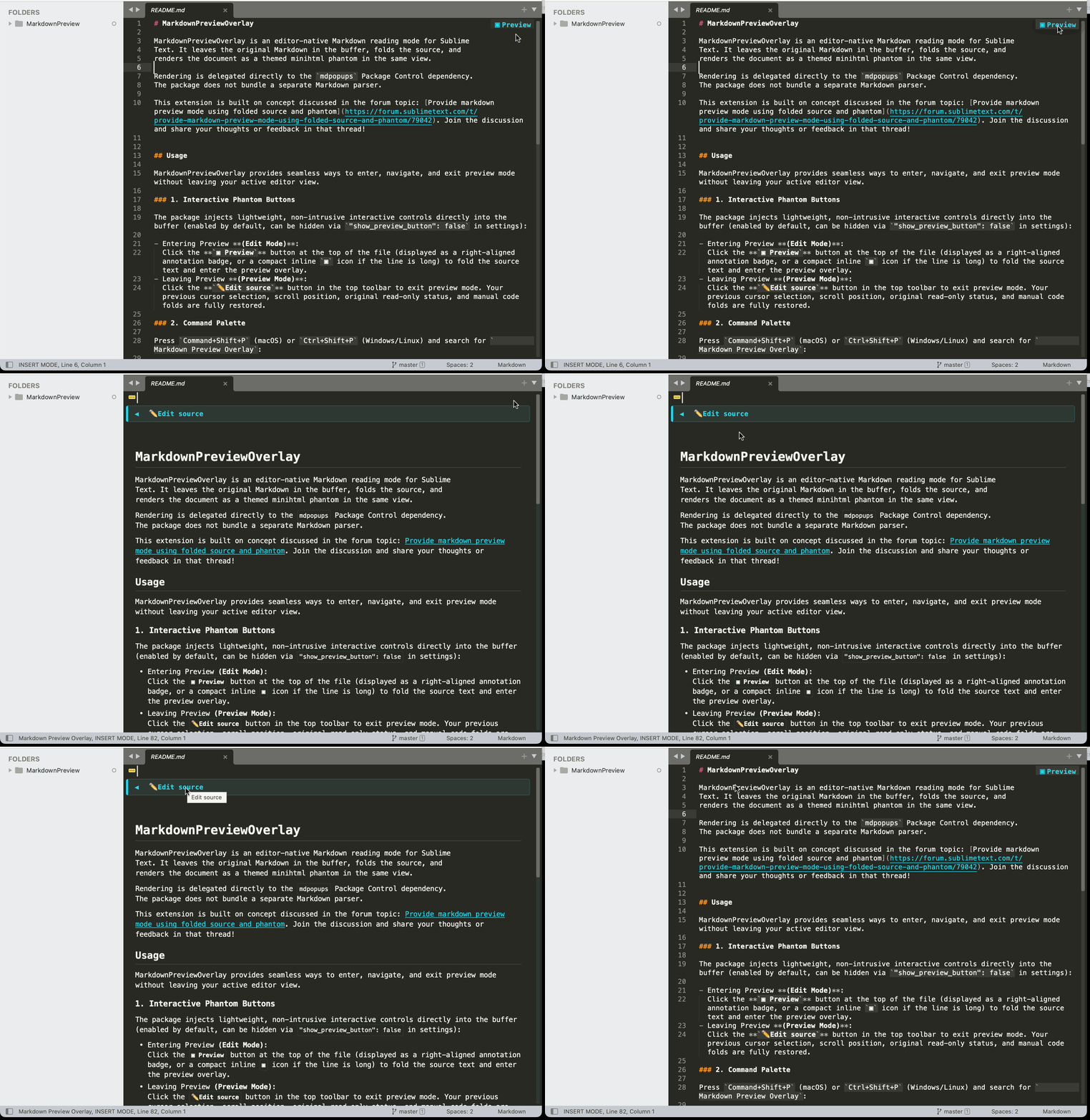
This extension is built on concept discussed in the forum topic: Provide markdown preview mode using folded source and phantom. Join the discussion and share your thoughts or feedback in that thread!
Features & Capabilities
Compared to traditional external browsers or split-pane previewers, MarkdownPreviewOverlay renders your Markdown preview directly inside the same editor view while keeping your plain-text workflow intact:
- Zero Context-Switching: Read and edit in the exact same view—never leave Sublime Text or juggle external browser windows.
- No Split-Pane Clutter: Maximizes your entire editor width without dividing the screen into cramped columns or causing premature line wrapping.
- Exact Scroll & Cursor Preservation: Seamlessly preserves and restores your exact cursor positions, active selections, viewport scroll offset, and manual code folds when toggling modes.
- Lightweight & Theme-Adaptive: Powered directly by Sublime Text’s built-in
minihtmlengine (mdpopups) with zero background servers, minimal memory overhead, and automatic color scheme alignment. - Full Complex Markdown Support: Seamlessly renders complex Markdown constructs, featuring a custom table engine that auto-adapts to your viewport width, along with syntax-highlighted code blocks, blockquotes, and nested lists tailored for miniHTML.
Note: Rendering is delegated directly to the
mdpopupsPackage Control dependency without bundling a separate Markdown parser.
Usage
MarkdownPreviewOverlay provides seamless ways to enter, navigate, and exit preview mode without leaving your active editor view.
1. Interactive Phantom Buttons
The package injects lightweight, non-intrusive interactive controls directly into the buffer for saved files (enabled by default, can be hidden via "show_preview_button": false in settings):
- Preview Mode:
Click the
▣ Previewbutton at the top of the file (displayed as a right-aligned annotation badge, or a compact inline▣icon if the line is long) to fold the source text and enter the preview overlay. - Edit Mode:
Click the
✏️Edit sourcebutton in the top toolbar to exit preview mode. Your previous cursor selection, scroll position, original read-only status, and manual code folds are fully restored.
2. Command Palette
Press Command+Shift+P (macOS) or Ctrl+Shift+P (Windows/Linux) and search for Markdown Overlay (or type mdo):
| Command | Description |
|---|---|
Markdown Overlay: Toggle |
Toggles seamlessly between Preview Mode and Edit Mode. |
Markdown Overlay: Preview Mode |
Enters the rendered preview mode for the active Markdown document. |
Markdown Overlay: Edit Mode |
Exits preview mode and returns to editing the source buffer. |
Markdown Overlay: Refresh |
Forces a re-render of the preview layout (useful after resizing the window). |
Note for Unsaved Buffers: To keep scratch view clean, the inline
▣ Previewbutton is only displayed for saved files on disk. For unsaved or untitled buffers, enter preview mode using the Command Palette or a keyboard shortcut.
Behavior & Document Lifecycle
- Read-only Safety: Preview mode makes the buffer temporarily read-only to prevent accidental edits while viewing formatted text.
- Buffer Integrity: Source folding uses standard Sublime Text region folding without modifying the buffer text or polluting the undo history.
- Unsaved Buffers & Scratch Pads: The inline preview button is intentionally omitted on unsaved buffers or scratch pads to prevent visual clutter; use the Command Palette or a keyboard shortcut to preview them anytime.
- Auto-Refresh: If the document is modified or saved, the preview updates automatically with debounced re-rendering.
- Local Images Only: Only local image files are rendered; remote web images are not downloaded; resolving local relative image paths is enabled by default (disable via
"resolve_image_paths": false). - Keyboard Navigation: In preview mode, native navigation keys (Up/Down arrows, PageUp/PageDown, Home/End, Cmd+Up/Down) automatically scroll the preview without requiring any custom keybindings.
Configuration
Access settings and key bindings via the menu: Preferences -> Package Settings -> MarkdownPreviewOverlay.
Settings
Settings can be customized via Preferences -> Package Settings -> MarkdownPreviewOverlay -> Settings (or directly in MarkdownPreviewOverlay.sublime-settings):
| Setting | Description |
|---|---|
show_preview_button |
Display the interactive ▣ Preview button at the top of saved files in edit mode (default: true). |
sync_preview_position |
Synchronize preview scroll position with the current Markdown source position (default: true). |
hide_line_numbers |
Automatically hide line numbers and the gutter in preview mode (default: true). |
show_status_indicator |
Display the active mode indicator in the status bar during preview mode (default: true). |
table_max_width |
Maximum character width for rendered tables; null auto-fits the viewport width (default: null). |
resolve_image_paths |
Rewrite local relative image paths to absolute file:// URIs for rendering (enabled by default: true). Set to false if prefer image paths to be untouched. |
image_max_width |
Maximum display width in pixels for rendered images when resolve_image_paths is enabled (default: 900). |
keyboard_scroll_lines |
Number of lines to scroll per arrow key press (Up/Down) in preview mode (default: 3.0). |
Key Bindings
MarkdownPreviewOverlay does not register a shortcut to avoid collisions. Key bindings are provided as a keymap example.
To enable keyboard shortcuts, open Preferences -> Package Settings -> MarkdownPreviewOverlay -> Key Bindings (or copy from Example.sublime-keymap into your User keymap):
[
    {
        "keys": ["primary+alt+r"],
        "command": "markdown_preview_overlay_toggle",
        "context": [{ "key": "setting.is_widget", "operand": false }]
    }
]
primary+alt+r automatically maps to Cmd+Option+R on macOS and Ctrl+Alt+R on Windows/Linux in Sublime Text.
Development installation
Clone or link this directory as Packages/MarkdownPreviewOverlay, then run
Package Control: Satisfy Dependencies. Package Control installs mdpopups
according to dependencies.json.
Sublime Text build 4050 or newer is required. The package selects Sublime's
Python 3.8 plugin host through .python-version.
License
This project is licensed under the Apache-2.0 License.