MarkdownGlance
See your Markdown as you write, right inside Sublime Text 4. Keep a live preview beside your text, or switch to a full-screen preview to read without distractions. No browser needed.
Installations minus removals
Upgrades
- 2,012 installs
- 24 stars
Links
Versions
0.7.0
(ST4200+)
·
More
-
(ST4200+)
0.6.0
·
2026-10-16 02:22 -
0.5.3
·
2026-10-12 01:56 -
0.5.2
·
2026-10-10 01:34 -
0.5.1
·
2026-09-15 08:45 -
0.5.0
·
2026-09-15 08:31 -
0.4.2
·
2026-09-06 05:42 -
0.4.1
·
2026-09-06 02:00 -
0.4.0
·
2026-09-06 00:40 -
0.3.1
·
2026-09-01 23:22 -
0.3.0
·
2026-08-30 01:36 -
0.2.1
·
2026-08-29 09:27 -
0.2.0
·
2026-08-29 08:47 -
0.1.4
·
2026-08-28 23:50 -
0.1.3
·
2026-08-28 22:42 -
0.1.2
·
2026-08-28 09:04 -
0.1.1
·
2026-08-28 08:44 -
0.1.0
·
2026-08-28 08:40
MarkdownGlance



See your Markdown as you write, right inside Sublime Text 4. Keep a live preview beside your text, or switch to a full-screen preview to read without distractions. No browser needed.

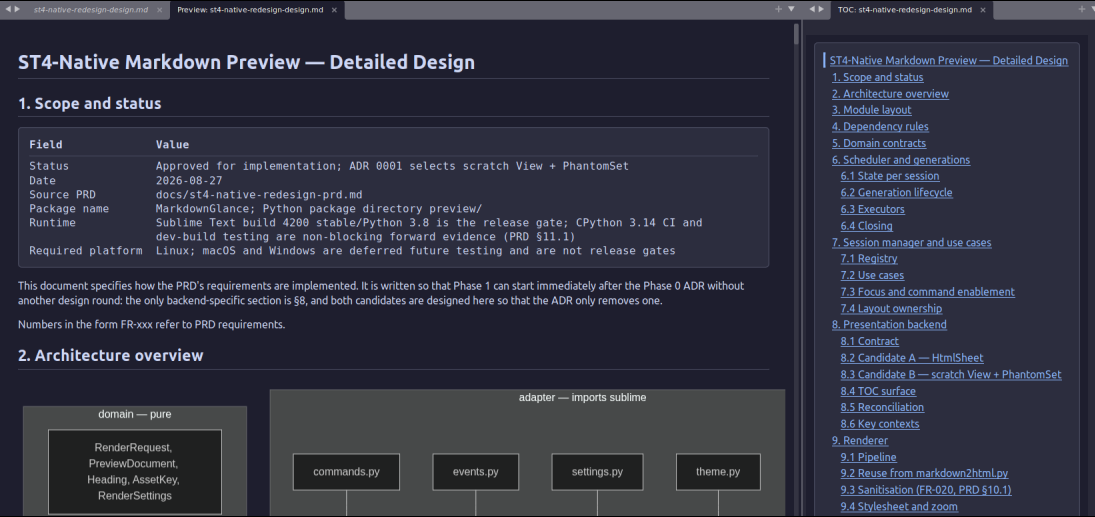
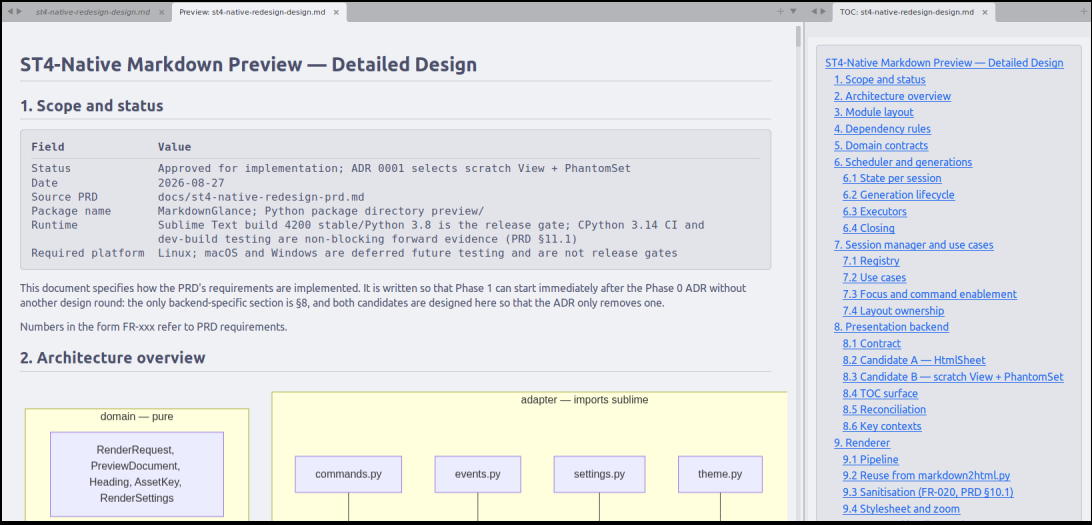
A preview with the optional table of contents enabled. Colours follow your editor's color scheme, in both dark and light themes.
Features
- Preview as you type, even before you've saved the file.
- Read your way: side-by-side or full-screen preview, with adjustable zoom.
- Keep your theme: the preview follows your editor's colours.
- Navigate long documents with one panel that shows the source outline while you edit and the preview's table of contents while you read.
- One preview, whatever you have open: the preview and the contents panel follow you between files rather than piling up a tab each.
- Where you left it: reopen Sublime Text and the preview comes back on the same document, in the same pane, at the same zoom.
- View images and tables, including local and remote images. Sublime Text's minihtml draws PNG, JPEG and GIF; an SVG — a diagram beside the document, or the badges at the top of a README — is drawn as a PNG by resvg on your machine, with nothing uploaded. An image in a format neither can draw, WebP most often, says so in place, and Open in Browser shows the document with those images drawn.
- Read code in colour: a fenced block that names its language is highlighted with the editor's own syntaxes and colour scheme, the way it looks in the source.
- Add diagrams and formulas with optional Mermaid and LaTeX math support.
- Open in Browser when you want to see the document as a web page.
Requirements
Sublime Text build 4200 or newer, on Linux, macOS or Windows, with Package Control installed to manage the required libraries.
To display SVG images, resvg as well; see SVG images. Everything else works without it.
Installation
Package Control
MarkdownGlance is on Package Control.
- Open the Command Palette (Tools → Command Palette…) and run Package Control: Install Package.
- Type
MarkdownGlanceand press Enter.
Package Control installs the libraries the preview needs, and updates the package when a new version is released.
If you installed MarkdownGlance by hand before it was on Package Control, delete its folder from the directory that Preferences → Browse Packages… opens, then install it as above so that updates reach you. To run it from a Git checkout instead, see CONTRIBUTING.md.
Open your first preview
Open a Markdown file, then run MarkdownGlance: Open Preview to the Side from the Command Palette. The preview updates as you type.
If a dialog reports missing libraries, run Package Control: Satisfy Libraries again and restart Sublime Text.
Commands
All commands are available from the Command Palette. On macOS, use Cmd
instead of Ctrl for the shortcuts below.
| Command | Shortcut |
|---|---|
| MarkdownGlance: Open Preview to the Side | Ctrl+K, then V |
| MarkdownGlance: Toggle Preview | Ctrl+Shift+V |
| MarkdownGlance: Toggle Contents Panel | Ctrl+Shift+B |
| MarkdownGlance: Zoom In / Out | Ctrl+=, Ctrl+- |
| MarkdownGlance: Reset Zoom | Ctrl+0, in the preview |
| Preferences: MarkdownGlance Settings | — |
| Preferences: MarkdownGlance Key Bindings | — |
| MarkdownGlance: Copy Diagnostics | — |
| MarkdownGlance: Open in Browser | — |
Toggle Preview switches between your Markdown text and a full-screen preview. Closing a preview leaves your source files open.
Zoom works from your Markdown file as well as from the preview: with a
preview open, Ctrl+= and Ctrl+- resize it rather than the editor font, and
holding Ctrl/Cmd while scrolling over the preview zooms it without clicking
it first. With no preview open they are Sublime's own font size. Ctrl+0
resets the zoom from inside the preview; in your file it stays Sublime's
Focus Side Bar.
Scrolling with the keyboard: in the preview and the contents panel, Up
and Down move a line, Page Up and Page Down a screen, and Home and
End go to the top and the bottom (Ctrl+Home and Ctrl+End too, and
Cmd+Up and Cmd+Down on macOS). A preview has the focus when it opens, and
Ctrl+K, V in your file gives it back the focus.
A window has one preview, however many Markdown files you have open in it. It shows whichever one you are working on and is named for it, and it remembers where you had scrolled to in each. Files you have not looked at yet are rendered the first time you focus them; after that, switching between them is immediate.
Open in Browser creates a temporary HTML page and opens it in your default browser. It can display diagrams and formulas even when they are disabled in the live preview. See Network and privacy for how these are rendered and how embedded scripts are handled.
Changes to default shortcuts
While you're editing Markdown, Ctrl+Shift+V opens the preview instead of
Paste and Indent, and Ctrl+Shift+B opens the contents panel instead of
Build With…. These shortcuts also work inside the preview and the panel.
They don't change shortcuts in other source files.
Normal paste (Ctrl+V) and build (Ctrl+B) still work. Paste and Indent
is also available from the Edit menu. To customise the shortcuts, run
Preferences: MarkdownGlance Key Bindings and add your preferred bindings
in the user file.
The contents panel
Press Ctrl+Shift+B for a list of the document's headings beside it. Click one
to go to it. There is one panel per window, showing the file you are working
on, and it shows the half that matches whatever you are looking at:
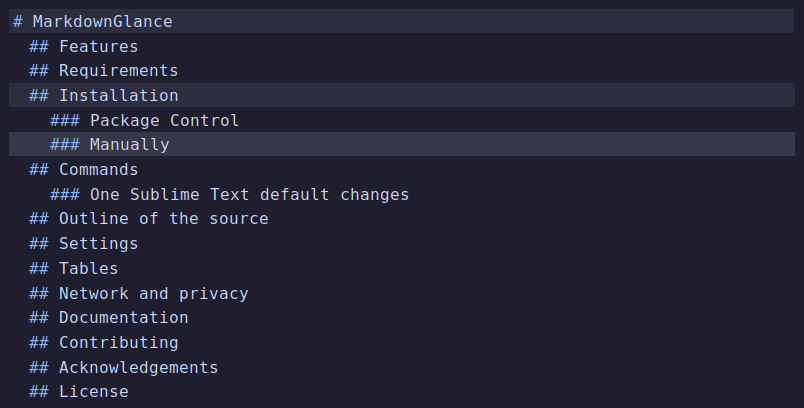
- Editing the source — the headings of the file as you have written them, updating as you type, with your current section highlighted. This works with no preview open at all.
- Reading the preview — the headings of the rendered document, with the section you last jumped to highlighted.
Clicking an entry takes you to that section in both panes: the caret moves to it and the preview scrolls to it, whichever half you clicked and wherever the focus is. You do not have to click the preview first.
The shortcut opens and focuses the panel. If it's already open, the shortcut focuses it; press it again from inside the panel to close it.
With "enable_toc": true in settings, the panel also opens by itself for
previews that meet the length and heading thresholds (toc_minimum_length and
toc_minimum_headings). That setting governs only whether it opens on its
own; one you opened yourself shows both halves whichever way it is set.
Closing its tab hides it until you ask for it again.
The panel adjusts its width to fit the headings. Drag the divider if you prefer to set the width yourself.
Settings
Run Preferences: MarkdownGlance Settings from the Command Palette. The left pane explains every setting; add your choices in the right pane and save.
Common options:
| Setting | What it does | Default |
|---|---|---|
enable_toc |
Open the contents panel by itself for longer previews | false |
enable_mermaid |
Render Mermaid diagrams using an online service | false |
mermaid_renderer_path |
Draw diagrams locally with merman-cli or mmdc instead |
"" |
enable_math |
Render LaTeX formulas using an online service | false |
auto_width |
Fit the contents panel's width to its headings | true |
enable_svg |
Draw SVG images with a local renderer | true |
svg_renderer_path |
Where that renderer is, when it is not on your PATH |
"" |
enable_syntax_highlighting |
Colour fenced code the way the editor does | true |
font_family |
The font for the preview's text, such as "Inter" |
"" |
Before enabling diagrams or math, read Network and privacy.
Tables
Markdown tables appear as aligned columns in a fixed-width font and adjust to the preview's width. For a traditional web-style table, use Open in Browser.
Code blocks
A fenced block that names its language — ```python, ```js, ```sh —
is coloured by Sublime Text itself, with the syntax and colour scheme the
editor uses for that fence in the source. Any language the editor highlights
is highlighted in the preview, under the same names, including syntaxes from
packages you have installed. A block with no language, or one the editor does
not know, stays plain. Change colour scheme and the code follows it.
Nothing is sent anywhere. Colour costs the preview some work on very long
documents with many blocks; set "enable_syntax_highlighting": false to
show all code plain. Open in Browser shows code plain either way.
SVG images
minihtml decodes PNG, JPEG and GIF and nothing else, so an SVG is converted to a PNG before it is shown. The conversion happens on your machine, with resvg: install it, and a local drawing or a remote badge appears like any other image. Without it, the image reads No SVG renderer in place.
Its releases carry ready-made binaries for Linux and macOS; put one on your
PATH, or set svg_renderer_path to it:
{
    "svg_renderer_path": "/home/you/.local/bin/resvg"
}
On Windows, build it with cargo install resvg until a binary is published.
The image is drawn at twice the size it is shown at, so it stays sharp on a
high-DPI display, and the conversion runs off the editor's thread — a large
drawing shows Loading and then appears. A local SVG may reference images
beside it; one downloaded from the web is drawn without access to your files.
Nothing is uploaded, and the document keeps its original image reference.
resvg draws static SVG: animation and scripts are outside what it does, and
HTML labels inside foreignObject — which Mermaid exports by default — are
drawn as empty boxes rather than an error. An image the renderer rejects reads
Could not be drawn. Open in Browser shows any of these as a browser
would. Set "enable_svg": false to turn the whole thing off.
Local Mermaid diagrams
With enable_mermaid on, diagrams go to mermaid_server unless you name a
renderer on your own machine. Set mermaid_renderer_path to
merman-cli or to mermaid-cli's mmdc,
and the diagram is drawn there instead; its source is not sent anywhere:
{
    "enable_mermaid": true,
    "mermaid_renderer_path": "/opt/homebrew/bin/merman-cli"
}
merman-cli (brew install merman-cli, scoop install merman-cli, or cargo binstall merman-cli) is a single native binary and the quicker of the two. It
does not run a browser: bold and italic in a label are drawn plain, Font
Awesome icons are left out, and a label can wrap a little differently.
mmdc (npm install -g @mermaid-js/mermaid-cli) runs Mermaid itself in
headless Chromium, so it draws exactly what Mermaid does, at around a second
per diagram. A bare name is looked up on the PATH; give the full path if
Sublime Text cannot see it.
On Linux, merman-cli's prebuilt binary needs glibc 2.38 or later; on an older
system such as Ubuntu 22.04, cargo install merman-cli builds one that runs.
merman-cli 0.9.3 can fail every diagram on a desktop with many fonts
installed, with native font limit system-cmap-bytes exceeded in the
console; 0.9.2 is not affected.
Diagrams use Mermaid's classic look, with plain borders. Set
"mermaid_look": "neo" for Mermaid 12's gradient borders and drop shadows,
which merman-cli and mermaid.ink would otherwise default to; a diagram's own
front matter overrides either.
Like an SVG, a diagram is drawn at twice the size it is shown at, off the
editor's thread, and a run that outlives mermaid_timeout_seconds is ended,
along with any browser it started. A diagram the renderer cannot draw --
usually a syntax error -- reads Could not be drawn, and the renderer's own
message is in the console (View → Show Console).
Math
Set "enable_math": true to display LaTeX formulas written as $...$
(inline) or $$...$$ (a separate block). Formulas appear as images that match
your editor's colours. With math disabled, you'll see the original formula
text instead.
Network and privacy
Regular Markdown text is rendered inside Sublime Text. Features that access the network are:
- Remote images are downloaded from their URLs. Insecure HTTP images are blocked by default, downloads have time and size limits, and downloaded images are cached only in memory.
- SVG images are converted on your machine by a renderer you install. The image is not uploaded and no service is involved; the renderer runs as a short-lived process with a timeout.
- Diagrams and math in the live preview are off by default. Enabling them
sends the diagram or formula text and a theme colour to the configured
service:
mermaid_server(default:https://mermaid.ink) ormath_server(default:https://latex.codecogs.com). Withmermaid_renderer_pathset, diagrams are drawn on your machine instead and are not sent anywhere. - Open in Browser downloads Mermaid and KaTeX from jsDelivr when needed, then renders diagrams and formulas in your browser without sending their text to a rendering service. Remote images may still load from their URLs. The exported page preserves embedded HTML and scripts, so only use this command with documents you trust.
Copy Diagnostics leaves out document text, file paths, URLs, and diagram and formula contents.
Documentation
- Migrating from MarkdownLivePreview
- Changelog
- Security policy
- Architecture
- Architecture decision records — implementation details and design decisions
- Manual test plan
Contributing
Issues and pull requests are welcome. See CONTRIBUTING.md for setup, testing, and pull request guidance. When reporting a problem, include what you expected, what happened, and the output of MarkdownGlance: Copy Diagnostics.
Acknowledgements
Inspired by MarkdownLivePreview by Mathieu Paturel. Thank you for showing how useful a Markdown preview inside Sublime Text can be. MarkdownGlance is an independent implementation for Sublime Text 4.
My Markdown workflow
I use Auto Save After Delay alongside MarkdownGlance. MarkdownGlance keeps the preview up to date while I write; Auto Save After Delay saves the file when I pause typing.
License
MIT. See LICENSE. The Markdown and pymdown-extensions libraries
are installed through Package Control and have their own licenses.