Interactivity
Interactivity lets you run local shell commands and scripts directly within your Sublime Text editor, providing the output alongside your written content. Use your favorite tools like Python, Node.js, Java, Perl, PHP, bash, or any other REPLs.
Installations minus removals
Upgrades
- 90 installs
- 3 stars
Links
Version
0.1.0
·
Interactivity for Sublime Text: run Python, Node.js, Java, Perl, PHP, bash, or any other REPLs
Feel free to ask any questions about the plugin on the Sublime Text forum!
Interactivity lets you run local shell commands and scripts directly within your Sublime Text editor, providing the output alongside your written content. Use your favorite tools like Python, Node.js, Java, Perl, PHP, bash, or any other REPLs.
For example, if you need to quickly calculate a project's budget while taking notes, you can type the numbers and hit Enter in the editor to execute the code in the desired REPL:
## Mike's rate is $120. Thus, it will cost us:

@120*8*21*12+8000
249920
By default, text shortcuts like @ run in plain text, Markdown, reStructuredText, Org and AsciiDoc files, but not in code blocks of programming languages, so decorators, CSS at-rules and other lines starting with @ in source code are left alone. See enabled_selector to change this, or run Interactivity: Toggle Text Shortcuts in This Tab from the command palette.
Installation
To install the Interactivity package via Package Control, follow these steps:
Install Package Control (if you haven't already):
- Open Sublime Text.
- Access the command palette by pressing
Ctrl+Shift+P(Windows/Linux) orCmd+Shift+P(Mac). - Type
Install Package Controland pressEnter.
Install the Plugin:
- Open the command palette again by pressing
Ctrl+Shift+P(Windows/Linux) orCmd+Shift+P(Mac). - Type
Package Control: Install Packageand pressEnter. - In the package list, type
Interactivityand select it to install.
- Open the command palette again by pressing
The plugin runs the REPL with the python command (on Linux and macOS, with python3 when there is one), so Python has to be installed. See Setting up Python integration.
Python Modules Collection
My favorite daily tool is Python, which is why I included several sample Python modules in this plugin.
- chat.py Integrates ChatGPT directly with the editor. Remember to set up an OpenAI API key.
- tables.py Imports Excel and CSV tables into the editor.
These modules require the following dependencies: openai (1.66 or newer), pandas, tabulate, and openpyxl for Excel files.
You can install them with this command: pip install openai pandas tabulate openpyxl.
A module whose dependencies are missing is not loaded, and the reason is shown in the output panel (Interactivity: Show Output Panel in the command palette). The other modules keep working.
Here's a demo of how they work:
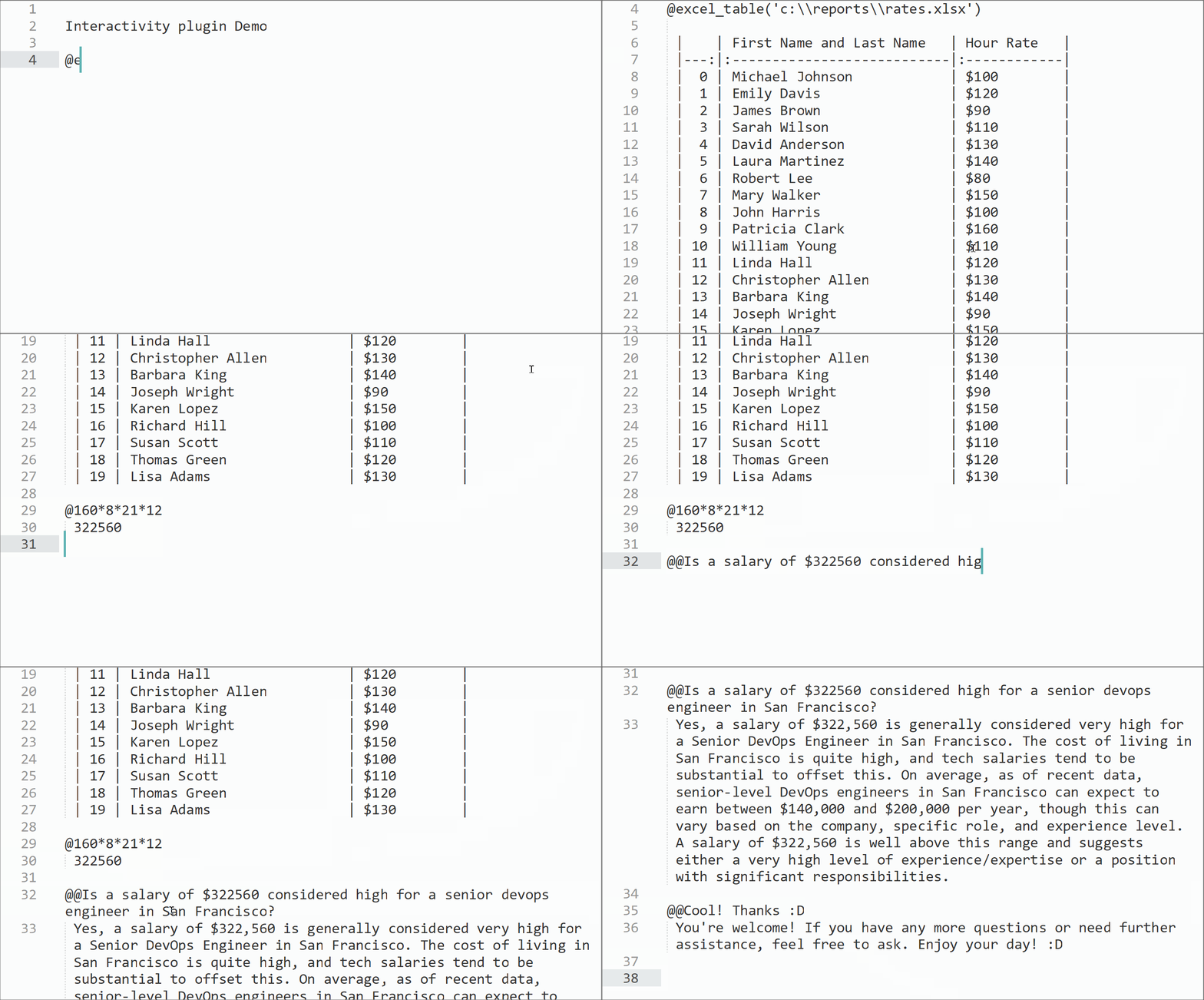
Available Functions in the Modules within Sublime Text
chat.py
chat(prompt: str, system: str = None, save_context: bool = True, model: str = None, reasoning_effort: str = None) -> None:
- Parameters:
prompt(str): The user query to be sent to ChatGPT.system(str, optional): An optional system prompt.save_context(bool, optional): Whether to save the chat context for continuity. Default isTrue.model(str, optional): The model to be used for the chat. Default is'gpt-6-luna', a fast and cheap model, with a low reasoning effort.reasoning_effort(str, optional): How much a reasoning model thinks before it answers, e.g.'none','low','medium'or'high'. With anothermodel, the model's own default is used.
- Output: Prints the assistant's response directly in the editor.
- Parameters:
chat_plus(prompt: str, system: str = None, save_context: bool = True) -> None:
- Parameters:
prompt(str): The user query to be sent togpt-6-sol, the most capable model. (chat4is the old name of this function.)system(str, optional): An optional system prompt.save_context(bool, optional): Whether to save the chat context for continuity. Default isTrue.
- Output: Prints the assistant's response directly in the editor.
- Parameters:
clean_chat() -> None:
- Output: Cleans the chat history by resetting the stored messages. This function does not produce a direct output in the editor.
The functions use the Responses API of OpenAI. The conversation is kept in the REPL, not on the servers of OpenAI. When a conversation no longer fits into the model's context window, the oldest messages are dropped. Other API errors are printed in one line without changing the chat history.
tables.py
excel_table(path: str, *args, **kwargs) -> None:
- Parameters:
path(str): The path to the Excel file.*args,**kwargs: Optional arguments to be passed topandas.read_excel, e.g.excel_table('report.xlsx', sheet_name='2024'). Withsheet_name=None, every sheet is printed.
- Output: Reads the Excel file and prints it as a markdown table directly in the editor.
- Parameters:
csv_table(path: str, *args, **kwargs) -> None:
- Parameters:
path(str): The path to the CSV file.*args,**kwargs: Optional arguments to be passed topandas.read_csv, e.g.csv_table('data.csv', ';')orcsv_table('data.csv', sep=';').
- Output: Reads the CSV file and prints it as a markdown table directly in the editor.
- Parameters:
Relative paths start from the folder of the file you run the command in.
Custom Functions
You can add your own Python scripts (or packages, i.e. folders with an __init__.py) to the Packages/User/Interactivity folder (Preferences > Browse Packages..., then User; create the Interactivity folder there). All global functions and variables in these scripts will be accessible within the editor. Scripts whose names start with _ are not loaded, but the other scripts of the folder can import them, e.g. from . import _helpers.
This folder is kept when the plugin is updated. The py_modules directory within the plugin's directory works too, but it is replaced by every update. Restart the REPL (Interactivity: Restart REPL) to load changed scripts. You are welcome to contribute new useful scripts in your favorite language.
Setting Up
Open the settings with Preferences > Package Settings > Interactivity > Settings, or with Preferences: Interactivity Settings in the command palette. The default settings are shown on the left; put your own settings on the right, into Packages/User/Interactivity.sublime-settings. Don't edit the Interactivity.sublime-settings file in the plugin directory: it is replaced when the plugin is updated.
Changes to the settings of the REPL process restart it.
Specify the path to any shell executable. Use ##plugin## to refer to the plugin's directory.
"shell": "python",
Specify shell command-line arguments. Use ##plugin## to refer to the plugin's directory.
"shell_params": [
   "-qi",
   "##plugin##modules/py_manager.py"
],
Set environment variables. Use ##plugin## to refer to the plugin's directory. (The old spelling of this setting, enviroment_variables, still works.)
"environment_variables": {
   "PYTHONIOENCODING": "utf8"
},
Define commands to run after starting the shell.
"startup_commands": "",
Define commands to run before closing the shell.
"shutdown_commands": "exit()",
Define text shortcuts for running commands. The entry key is the shortcut; the entry value is the command to execute. ##param## is replaced with the text after the shortcut, and ##param_str## with the same text as a quoted string literal (see Understanding the Shortcuts).
"text_shortcuts": {
   "@": "##param##",
   "@@": "chat_plus(##param_str##, system=\"Use markdown and emojis. Be less formal.\")"
}
Choose where text shortcuts run when you press Enter: a scope selector that is matched at the start of the line. The default is plain text, Markdown, reStructuredText, Org and AsciiDoc, except code blocks of programming languages; "" means everywhere.
"enabled_selector": "text.plain, text.html.markdown - source, text.restructuredtext - source, text.orgmode - source, text.asciidoc - source",
Prepend the output with custom text.
"prepend_output": " ",
Append the output with custom text.
"append_output": "",
Apply a RegExp pattern to filter the output, e.g. to remove the prompts of a REPL. The default is "".
"output_filter": "^(?:>>> |\\.\\.\\. )+",
Specify the number of initial lines to skip (e.g., shell greetings).
"lines_to_suppress": 0,
Setting up the OpenAI API key
chat.py takes the key from one of these places:
- The
OPENAI_API_KEYenvironment variable of your system. This is the safest way: the key is not in the settings of Sublime Text. - The
OPENAI_API_KEYvariable in your settings:"environment_variables": { "PYTHONIOENCODING": "utf8", "OPENAI_API_KEY": "sk-..." }, - A startup command, as in older versions of the plugin (it comes before the variable):
"startup_commands": "openai.api_key = 'sk-...'",
In the last two cases, the key is stored in plain text in your settings file, so don't share that file (e.g. as part of your dotfiles or backups).
Commands
Aside from using shortcuts, you can run the current line or the selected text with the Interactivity: Run Line or Selection command, or with a key binding for the interactivity command, for example:
{ "keys": ["alt+enter"], "command": "interactivity", "context": [{ "key": "setting.is_widget", "operand": false }] }
The context keeps the key free in input fields such as the Find panel, where Alt+Enter finds all matches. Lines copied from a Python console can be run as they are: the >>> and ... prompts are removed.
The command palette also has:
- Interactivity: Toggle Text Shortcuts in This Tab turns the text shortcuts on or off for the current tab.
- Interactivity: Restart REPL starts a fresh REPL, e.g. when a command takes too long.
- Interactivity: Show Output Panel shows messages of the plugin and output that doesn't belong to a command, such as startup errors.
The output of a command is inserted below the line it came from, even if you switch to another file while it is running. If the command's tab is closed or read-only, its output is shown in the output panel. Python commands run in the folder of the file they come from (after os.chdir(), in the new folder until a command comes from another file). If the REPL exits, the next command starts it again.
A selected block of Python code runs as a whole, without an empty line after it. A block can also be typed line by line, e.g. @for i in range(3): and @ print(i); a line with @ alone ends it. When a command asks for input, e.g. with input(), the next command you run is the answer. Programs that a command starts get no input.
Understanding the Shortcuts
Define text shortcuts to run specific commands with the text_shortcuts setting. The key of each entry is the shortcut; the value is the command to execute. Use ##param## to include the line after the shortcut in the command, or ##param_str## to include it as a quoted string.
Example 1
"text_shortcuts": {
   "@": "##param##"
}
@: This is the shortcut you type at the beginning of a line in the editor.##param##: This includes the text that follows the shortcut on the same line. Essentially, it allows you to insert any text directly into the command.
This setup allows you to directly execute the input text as a command.
Example 2
"text_shortcuts": {
   "@@": "chat_plus(##param_str##, system=\"Use markdown and emojis.\")"
}
@@: This is the shortcut you type at the beginning of a line in the editor.chat_plus(##param_str##, system=\"Use markdown and emojis.\"): This command calls thechat_plusfunction fromchat.pywith specific parameters.
Let's break down the parameters:
##param_str##: This includes the text that follows the shortcut on the same line as a string literal, so quotes and backslashes in your question can't break the command. (Shortcuts of older versions withr\"\"\"##param## \"\"\"work the same way.)system=\"Use markdown and emojis.\": This sets the system prompt for the chat.
By using this shortcut, you can quickly initiate a chat with ChatGPT using predefined settings, making your workflow more efficient.
Other REPLs
Any program that reads commands line by line can be used. For example, Node.js:
"shell": "node",
"shell_params": ["-i"],
"shutdown_commands": ".exit",
"lines_to_suppress": 2,
"output_filter": "^(?:> |\\.\\.\\. )+",
With the Python REPL of the plugin, the output of every command goes exactly below it. With other REPLs, the output goes below the latest command you ran.
Setting up Python integration
You can enhance the functionality by adding custom Python scripts to the Packages/User/Interactivity folder (see Custom Functions). All global functions and variables in these scripts will be accessible within the editor.
Installing Python
- Windows: Download the installer from python.org and follow the installation instructions. Make sure to add Python to your PATH during the installation. If
pythonopens the Microsoft Store instead, set the full path of Python in theshellsetting. - Linux: Use your package manager to install Python. For example, on Ubuntu:
sudo apt-get install python3. - macOS: Install Python using Homebrew:
brew install python3.
Finding Python Executable Path
If Sublime Text can't find Python (for example, on macOS Sublime Text doesn't see the PATH of your terminal), find the Python executable path by running the following command in your terminal:
which python3
Use the output of this command as the path in the shell setting. On Windows, where python shows the path.
When all is set up, you can call Python code from the Sublime Text:
@import numpy as np
@200 % (10 + 365) / np.e
73.57588823428847

@chat('How are you doing?')
I'm doing well, thanks for asking! How about you? What's on your mind today?

@@How are you doing?
I'm doing well, thank you for asking! How about you? How's your day going?
If You Also Use Obsidian
Check out the Interactivity: Calculations and Scripts for Obsidian.
Contributing
Contributions are welcome! Please submit a pull request or open an issue to discuss any changes. The tests run without Sublime Text: python -m unittest discover -s tests in the plugin's directory.
License
This project is licensed under the MIT License.