InlineOutline
Sublime Text Outline // Symbol List plugin
Installations minus removals
Upgrades
- 438 installs
- 11 stars
Links
Version
0.3.1
(ST4132+)
·
Hi 👋🏾
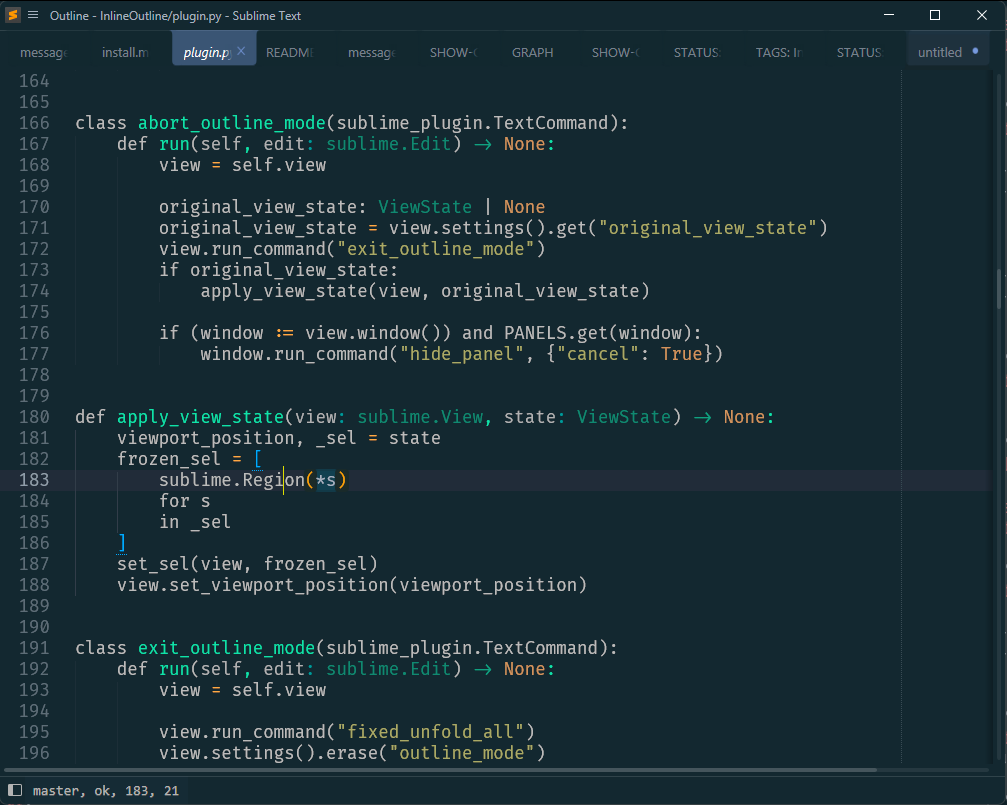
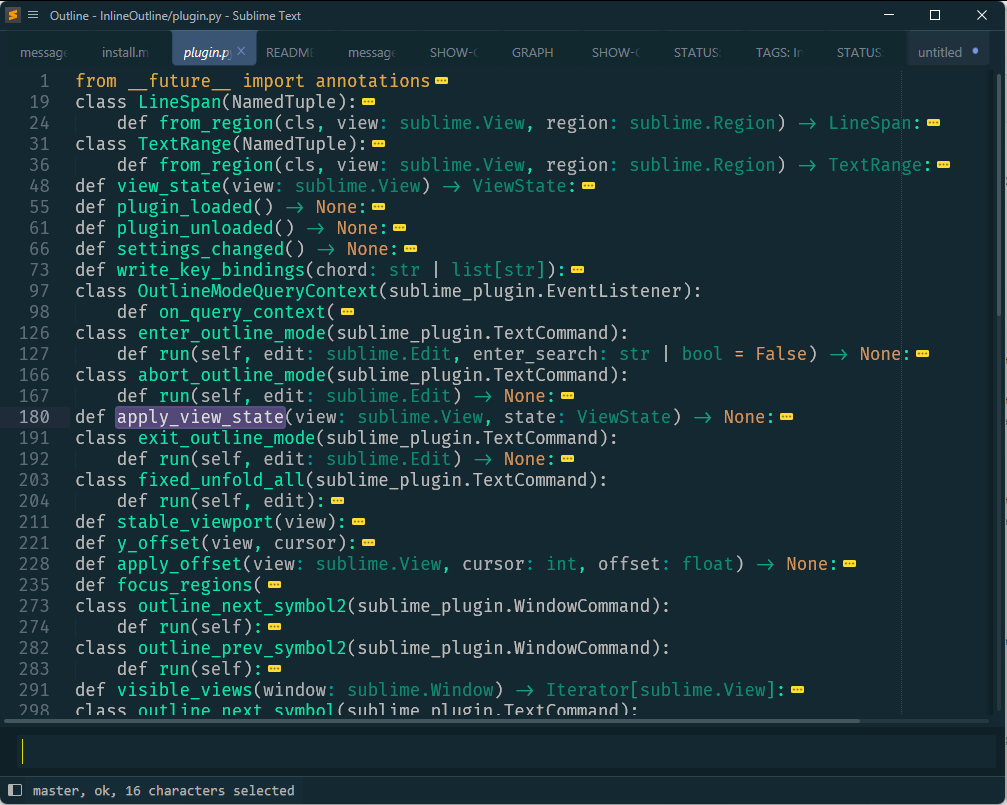
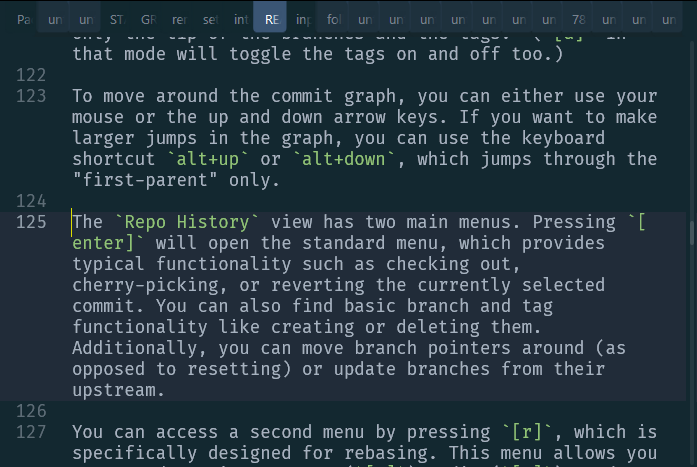
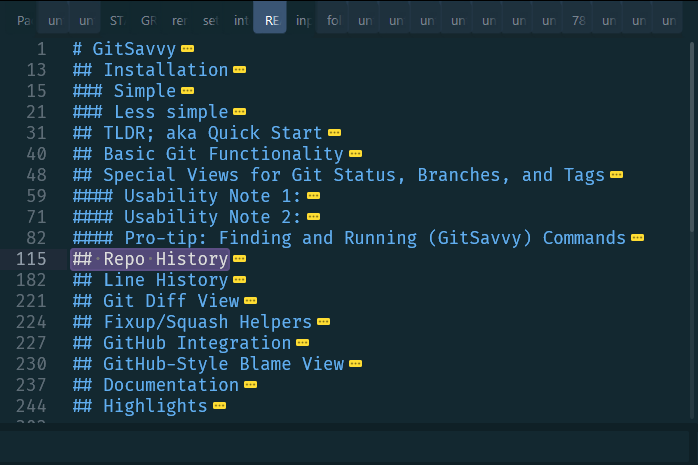
This is a plugin for Sublime Text. It is a temporary Outline-mode.
| Normal Mode | InlineOutline Mode |
|---|---|
 |
 |
 |
 |
At the same time, it is also a complete replacement but different approach to Goto Symbol. For example, you can fuzzy-search:
https://github.com/kaste/InlineOutline/assets/8558/42a8a375-2bae-4385-b0df-8580d6c83f69
Or walk using the arrow keys (or , and .):
https://github.com/kaste/InlineOutline/assets/8558/d6eca69b-c9b9-46b3-9b66-e61dd6303b47
As usual, <enter> or double-clicking with the mouse will go to the selected symbol
and <esc> will reset the cursor and viewport.
Key binding
By default, the plugin binds primary+shift+o (primary is ctrl), o as in
outline. You can change that in the settings (Preferences: InlineOutline Settings).
That's also where you can disable all key bindings; just read the instructions over there.
The main command to enter the outline mode accepts an initial search term. For example:
{
    "keys": ["primary+shift+o"],
    "command": "enter_outline_mode",
    "args": { "enter_search": "class " }
}
would let you see all defined classes in a Python file. If you find that useful, either as a key binding or as a command for the Command Palette or context menu, you need to add that manually in the right places inside your User package -- as usual.