File Filter
Sublime Text plugin for filtering file content using regular expressions
Installations minus removals
Upgrades
- 391 installs
- 7 stars
Links
Versions
3.0.3
(ST4001+)
·
File Filter Plugin for Sublime Text
Overview
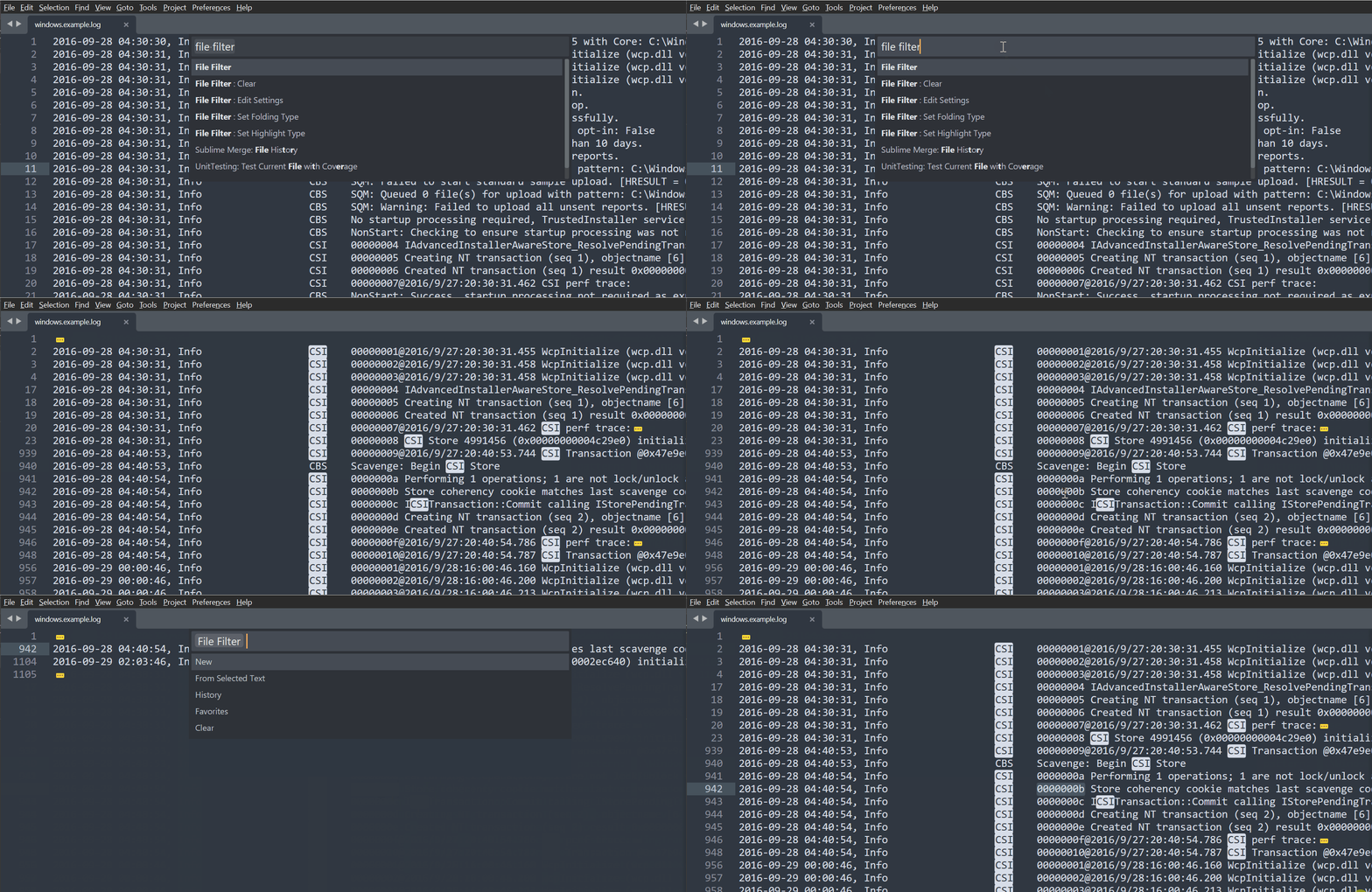
File Filter highlights regex matches and folds non-matching content without modifying the original file.
It is useful when you want to quickly isolate relevant lines or sections in large log files, source code, or text dumps.
Features
- Regex-based filtering
- Create a filter from selected text
- Highlight styles for matches
- Folding strategies for non-matching content
- Favorite presets
- History
Table of contents
Installation
- Open the Command Palette.
- Run
Package Control: Install Package. - Search for
File Filterand install it.
Commands
File Filter Command
- Open the Command Palette.
- Select
File Filter. - Choose one of the available options:
| Option | Description |
|---|---|
| New | Opens a regex prompt to create a new search pattern. |
| From Selected Text | Uses the current selection as the search pattern. |
| History | Restores a previously used regex from the current view history and applies it immediately. |
| Favorites | Applies a saved preset from the favorites list to the current view. |
| Clear | Clears the current filter, equivalent to the Clear command. |
Set Folding Style Command
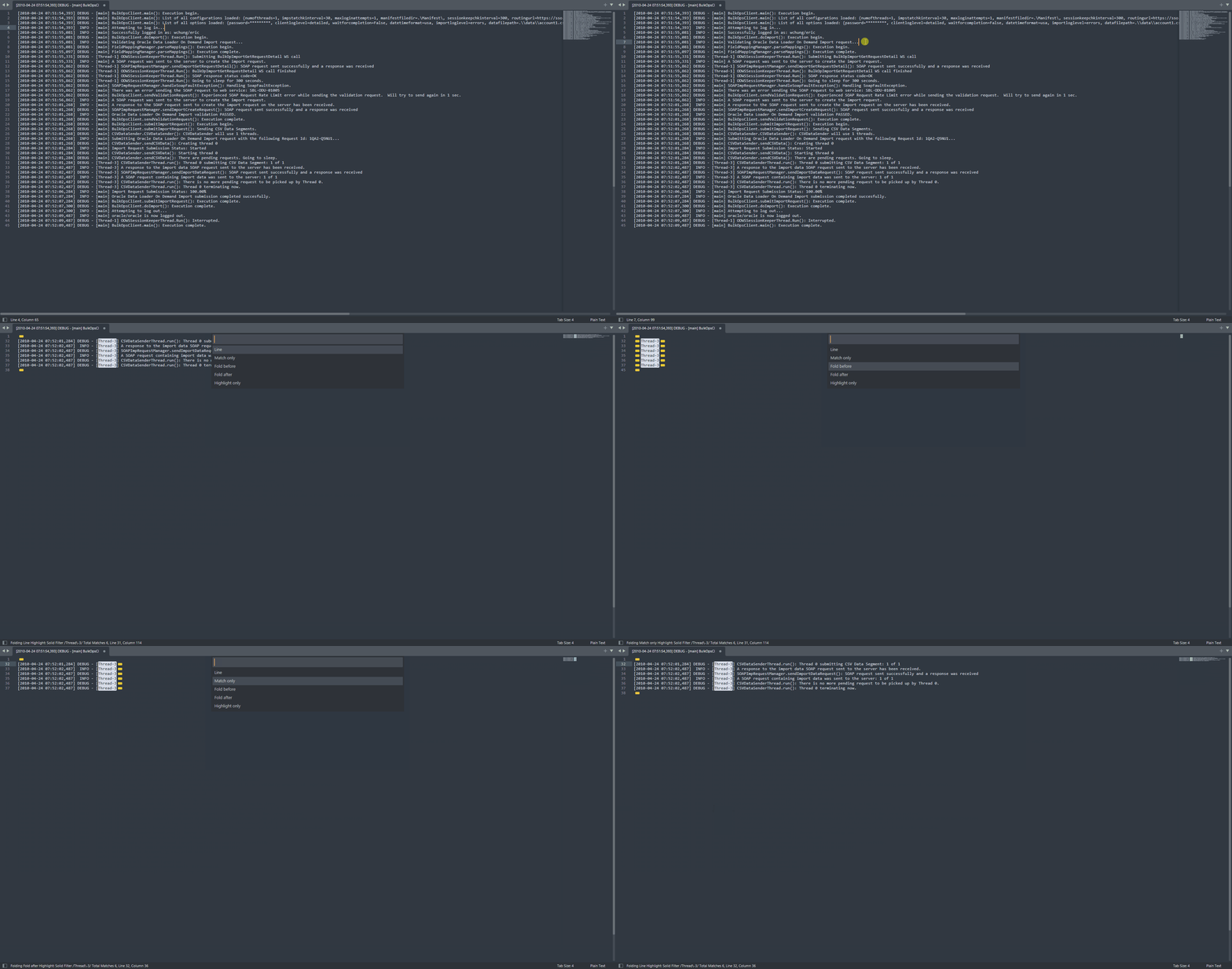
Adjust how content collapses around matches for better readability.
- Open the Command Palette.
- Select
File Filter: Folding Style.
Options:
line: Show the entire line while hiding lines with no matches.match_only: Show only the matched text.before_only: Fold all text before the match and show only the matching lines.after_only: Fold text after the match and hide lines with no matches.highlight_only: Highlight the matched text without folding or hiding any content.
Set Highlight Style Command
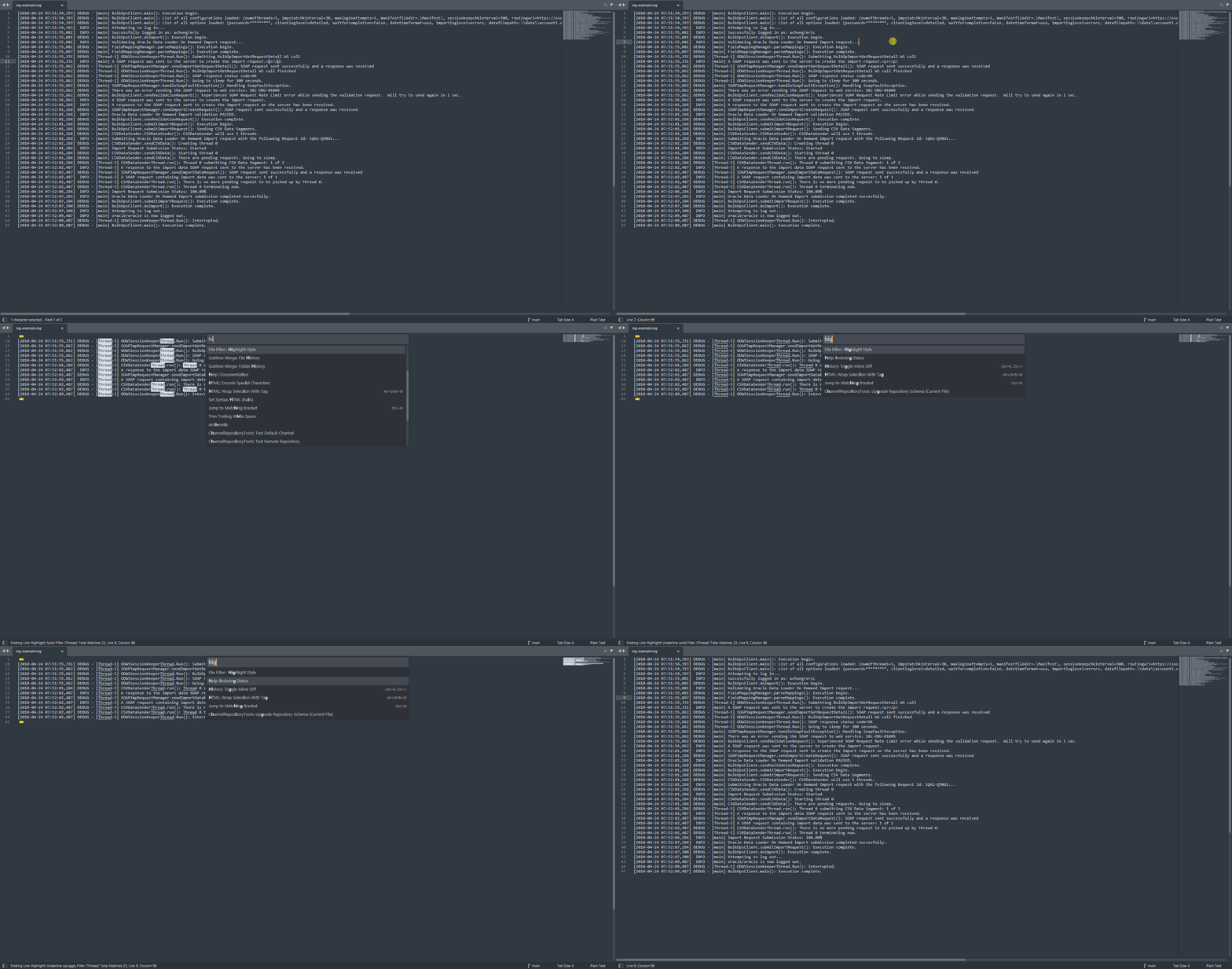
Adjust how matched text is highlighted.
- Open the Command Palette.
- Select
File Filter: Highlight Style.
Options:
solid: Highlight with a solid fill.outline: Highlight with an outline and no fill.underline_solid: Highlight with a solid underline and no fill or outline.underline_stippled: Highlight with a stippled underline and no fill or outline.underline_squiggly: Highlight with a squiggly underline and no fill or outline.none: Disable highlighting.
Clear Command
Clear all active filters.
- Open the Command Palette.
- Select
File Filter: Clear.
Edit Settings Command
Open the plugin settings file.
- Open the Command Palette.
- Select
File Filter: Edit Settings.
Regex syntax
For additional information on valid syntax and options, follow the Python regex documentation.
Flags:
Flags: use the
(?aiLmsux-imsx:...)syntax to add flags.
Using
PYTHON(the same as(?:PYTHON)), the filter will match lines withPYTHON.Using
(?i:PYTHON), the filter will match lines withpython,Python,PYTHON...Using
(?:PYTHON)outer, the filter will matchPYTHONouter.
Settings
{
    "global": {
        // minimum log level
        "log_level": 30,

        // default global regex
        "global_regex_flags": "gi"
    },
    "defaults": {
        // default highlight settings
        "highlight": {
            "type": "solid" // 'solid', 'outline', 'underline_solid', 'underline_stippled', 'underline_squiggly', 'none'
        },
        // default folding settings
        "folding": {
            "type": "line" // 'line', 'match_only', 'before_only', 'after_only', 'highlight_only'
        }
    },
    "commands": {
        "new": {
            // filter every time the prompt changes
            "filter_on_change": true,
            "show_total_matches": true
        },
        "from_selection": {
            // escape selected text to create the regex
            "escape_selection": true
        },
        "clear": {
            // keep the current setting name exactly as used by the plugin
            "center_viewport_on_carret": true,
            "remove_highlights": true,
            "unfold_regions": true
        }
    },
    // list shown in the favorites command
    "favorites": [
        {
            // avoid repeated codes
            "code": "logs-info",
            "name": "logs info",
            "pattern": "\\[INF]"
        }
    ]
}