CodeTestSwitcher
Sublime Text Code Test Switcher
Installations minus removals
Upgrades
- 792 installs
- 3 stars
Links
Version
Sublime Text Code Test Switcher
Jump between a Python source file and its automated test file in Sublime Text.
Here, a “test” is code that checks your program's behavior: for example,
calculator.py implements addition and tests/calculator_test.py checks that
add(2, 3) returns 5.
The plugin also copies a command for running a Python test method or class with Testify. It does not run tests itself. Switching files works without Testify installed.
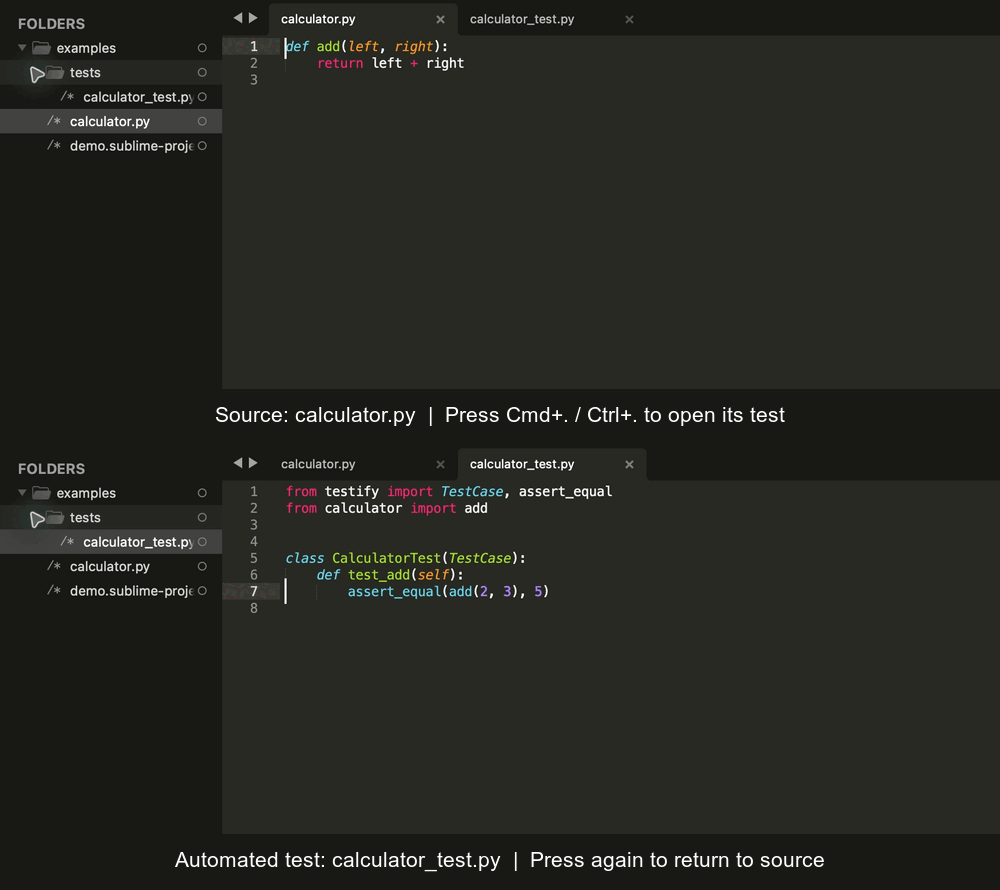
Quick start
- Install the plugin (see below).
- Open your project folder in Sublime Text with File → Open Folder…. Opening just an individual file does not give the plugin a folder to search.
- Open a saved Python file, such as
calculator.py. - Press ⌘. on macOS or Ctrl+. on Windows/Linux to open
calculator_test.py. Press it again in the test file to return to the source.
You can also open the Command Palette and search for Code Test Switcher.
Which files match?
The plugin searches all open project folders recursively by filename. The source and test can live in different subfolders:
my-project/
├── calculator.py
└── tests/
    └── calculator_test.py
| Current file | Searched filenames |
|---|---|
calculator.py |
calculator_test.py |
calculator.tmpl |
calculator_test.py |
calculator_test.py |
calculator.py or calculator.tmpl |
The supported test naming convention is name_test.py. Names such as
test_name.py are not matched. .tmpl support is for HTML templates; the switching
shortcut is active in Python and HTML syntax. If a template uses another syntax,
use the Command Palette. Other source languages are not supported.
If several matching files exist, a list of full paths lets you choose one;
Escape cancels. Hidden subfolders such as .git are skipped. If no match
exists, the plugin displays a message; it does not create a new file.
Copy a Testify command
For this saved file at tests/calculator_test.py inside the open project folder:
from testify import TestCase, assert_equal
from calculator import add


class CalculatorTest(TestCase):
    def test_add(self):
        assert_equal(add(2, 3), 5)  # Put the cursor here.
| Action | macOS | Windows / Linux | Copied text |
|---|---|---|---|
| Switch source ↔ test | ⌘. | Ctrl+. | — |
| Copy method command | ⌘, | Ctrl+, | testify tests.calculator_test CalculatorTest.test_add |
| Copy class command | ⌘⇧, | Ctrl+Shift+, | testify tests.calculator_test CalculatorTest |
Place the cursor on the def test_add(self): line or in its body to copy the
method command. For a class command, you can also place it on the class line.
The generated command appears in the status bar and is copied to the clipboard.
Paste it into a terminal at the project root to run it with Testify installed.
Command generation supports the traditional Testify layout shown above:
class Name(Base): and def test_name(self):. It searches backwards from the
cursor for these declarations. Pytest-style standalone functions, async tests,
and annotated or multiline declarations are not supported by this command helper.
It is not a general Python scope parser. File switching is independent of the
chosen test runner.
For multiple open project folders, the command's module path is relative to the folder containing the file; the most specific folder wins if they are nested.
Installation
With Package Control, run Package Control: Install Package from the Command Palette and choose CodeTestSwitcher.
For a manual installation or development checkout, choose Preferences → Browse Packages… and clone this repository inside that directory:
git clone https://github.com/maltize/sublime-text-code-test-switcher.git CodeTestSwitcher
Typical Packages locations:
- macOS:
~/Library/Application Support/Sublime Text/Packages/ - Windows:
%APPDATA%/Sublime Text/Packages/ - Linux:
~/.config/sublime-text/Packages/
Use one installation method to avoid loading duplicate copies of the commands.
Try the included example
Open examples/demo.sublime-project with
Project → Open Project…, or from a terminal in this repository:
subl --project examples/demo.sublime-project examples/calculator.py
- Press ⌘. / Ctrl+.:
tests/calculator_test.pyshould open. - Press it again:
calculator.pyshould open. - Return to the test, put the cursor inside
test_add, then press ⌘, / Ctrl+,. Paste into an empty scratch buffer to check fortestify tests.calculator_test CalculatorTest.test_add. - Repeat with ⌘⇧, / Ctrl+Shift+, for
testify tests.calculator_test CalculatorTest. - Open View → Show Console and check that loading the plugin produces no
SyntaxWarningor traceback.
The example is for navigation and command copying; executing its tests requires Testify in your project's Python environment.
Development checks
The regression suite uses standard-library API doubles and needs no Sublime Text or Testify installation. It checks warning-free compilation, file matching, project paths, file selection, and clipboard commands:
python3 -W error -m unittest discover -s tests -v
The GIF is captured from the included example in Sublime Text; see
docs/demo.md for the recording steps.
Maintainers
Please open an issue if you find a problem or would like a change.