CodeContinue
LLM powered Sublime Text plugin to autocomplete inline code
Installations minus removals
Upgrades
- 498 installs
- 35 stars
Links
Versions
2.5.4
(ST4000+)
·
More
-
(ST4000+)
2.5.3
·
2026-10-21 16:51 -
2.5.2
·
2026-10-19 07:07 -
2.5.1
·
2026-10-19 06:50 -
2.5.0
·
2026-10-18 09:27 -
2.4.0
·
2026-08-17 02:14 -
2.3.0
·
2026-08-03 18:59 -
2.2.0
·
2026-06-28 11:13 -
2.1.0
·
2026-05-25 03:05 -
2.0.0
·
2026-03-24 16:32 -
1.1.4
·
2026-02-19 16:23 -
1.1.3
·
2026-02-13 15:43 -
1.1.2
·
2026-02-11 17:49 -
1.1.0
·
2026-02-06 01:47 -
1.0.5
·
2025-12-30 13:34 -
1.0.0
·
2025-12-30 11:15
CodeContinue
Fast inline code autocomplete, real-time streaming chat, and in-place code editing for Sublime Text 4. Powered by any OpenAI-compatible or Anthropic LLM endpoint.
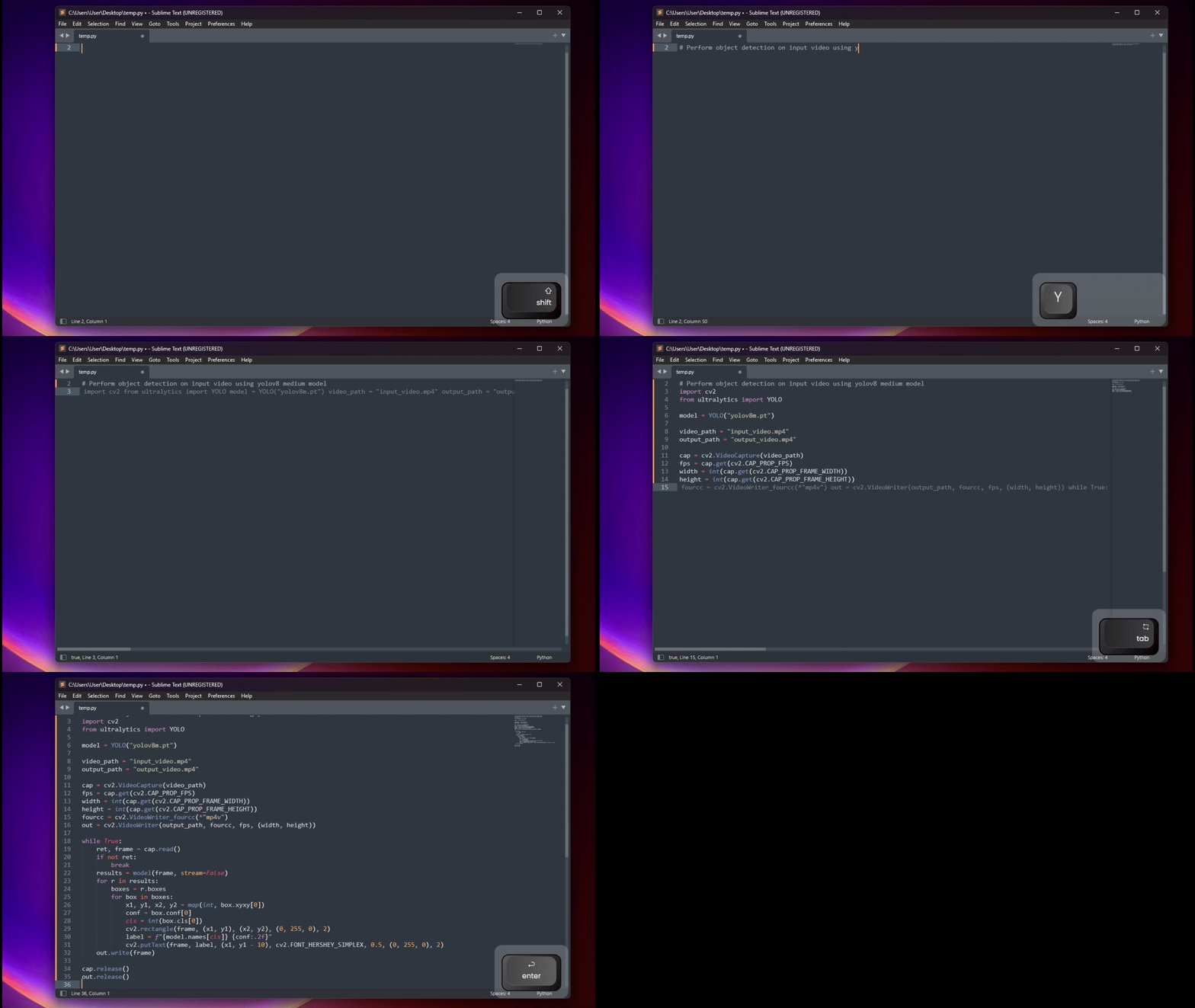
Features
- ⚡ Fast Inline Autocomplete: Fill-In-The-Middle (FIM) and bidirectional context slicing with automatic suffix deduplication.
- 💬 Real-Time Streaming Chat: Discuss code in an interactive split Markdown panel with live token streaming (Server-Sent Events).
- ✏️ In-Place Edit & Diff Review: Rewrite code using natural instructions. Inspect proposed changes as a unified diff before applying.
- 🔀 Dual-Engine Architecture: Mix and match models (e.g. fast local model for completions, Claude 3.5 Sonnet / GPT-4o for chat and edits).
- 🎯 1-Click Quick Action Presets: Right-click selected code to Explain Selection, Find Bugs, Generate Unit Tests, Add Docstrings & Types, or Optimize Code.
- 🌐 Universal Provider Support: Works out of the box with LM Studio, Ollama, vLLM, OpenAI, Anthropic, or any OpenAI-compatible server.
Quick Start
1. Install via Package Control
- In Sublime Text, press
Ctrl+Shift+P(orCmd+Shift+Pon macOS). - Select
Package Control: Install Package. - Search for
CodeContinueand pressEnter.
2. Run the Setup Wizard
Open the Command Palette (Ctrl+Shift+P / Cmd+Shift+P) and run CodeContinue: Configure (or go to Preferences > Package Settings > CodeContinue > Configure Wizard...).
The setup wizard will:
- Connect to your endpoint (e.g.
http://localhost:1234orhttps://api.openai.com). - Auto-detect available models from your server.
- Install recommended keybindings with a single click.
3. Usage
- Suggest code: Press
Ctrl+Enterat any cursor position. - Accept suggestion: Press
Tab(orEscapeto dismiss). - Chat or Edit: Select code and right-click to choose CodeContinue actions.
- Switch models: Press
Ctrl+Shift+P>>CodeContinue: Switch Model...to change models on the fly.
Command Reference
Access these commands via Ctrl+Shift+P / Cmd+Shift+P or the editor right-click menu:
| Command | Menu | Description |
|---|---|---|
CodeContinue: Suggest |
— | Trigger code suggestion at cursor (Ctrl+Enter) |
CodeContinue: Dismiss Suggestion |
— | Dismiss active suggestion (Escape) |
CodeContinue: Configure |
— | Launch interactive setup wizard |
CodeContinue: Switch Model... |
— | Switch active model on the fly |
CodeContinue: Chat about Selection |
✓ | Open streaming chat about highlighted code |
CodeContinue: Explain Selection |
✓ | Break down logic, edge cases, and complexity |
CodeContinue: Find Bugs & Vulnerabilities |
✓ | Scan selection for bugs and security issues |
CodeContinue: Generate Unit Tests |
✓ | Generate tests with edge-case coverage |
CodeContinue: Edit Selection |
✓ | Rewrite selection with instruction & diff preview |
CodeContinue: Add Docstrings & Types |
✓ | Add clean docstrings and type annotations |
CodeContinue: Optimize & Clean Code |
✓ | Refactor code for readability and performance |
Preferences: CodeContinue Settings |
— | Open user settings editor |
Preferences: CodeContinue Key Bindings |
— | Open keybinding editor |
Keybindings
The setup wizard (CodeContinue: Configure) automatically installs the recommended shortcuts into your User keymap without conflicts:
| Action | Shortcut | Command | Condition |
|---|---|---|---|
| Suggest | Ctrl+Enter |
code_continue_suggest |
Always available |
| Accept | Tab |
code_continue_accept |
Only when suggestion is visible |
| Dismiss | Escape |
code_continue_dismiss |
Only when suggestion is visible |
To customize your keybindings manually, run Preferences: CodeContinue Key Bindings.
Documentation & Guides
- ⚙️ Configuration Guide: Full settings reference, dual-engine setup, and provider recipes (LM Studio, Ollama, OpenAI, Anthropic).
- 🛠️ Troubleshooting Guide: Common fixes, debug logs (
"debug": true), and resolving manual install overrides. - 📦 Developer Tools & Offline Install: Standalone CLI and GUI installers for development builds.
Requirements
- Sublime Text 4 (Build 4000+)
- Python 3.8+ (bundled with Sublime Text 4)
- Access to an LLM runner (LM Studio, Ollama, vLLM) or API endpoint (OpenAI, Anthropic, etc.)
License
See LICENSE for details.