BlackboardForever Color Scheme
Sublime Text color scheme porting a blackboard.vim as rendered in a 256-color terminal (CSApprox)
Installations minus removals
Upgrades
- 2 installs
Links
Versions
1.0.2
(ST4000+)
·
BlackboardForever
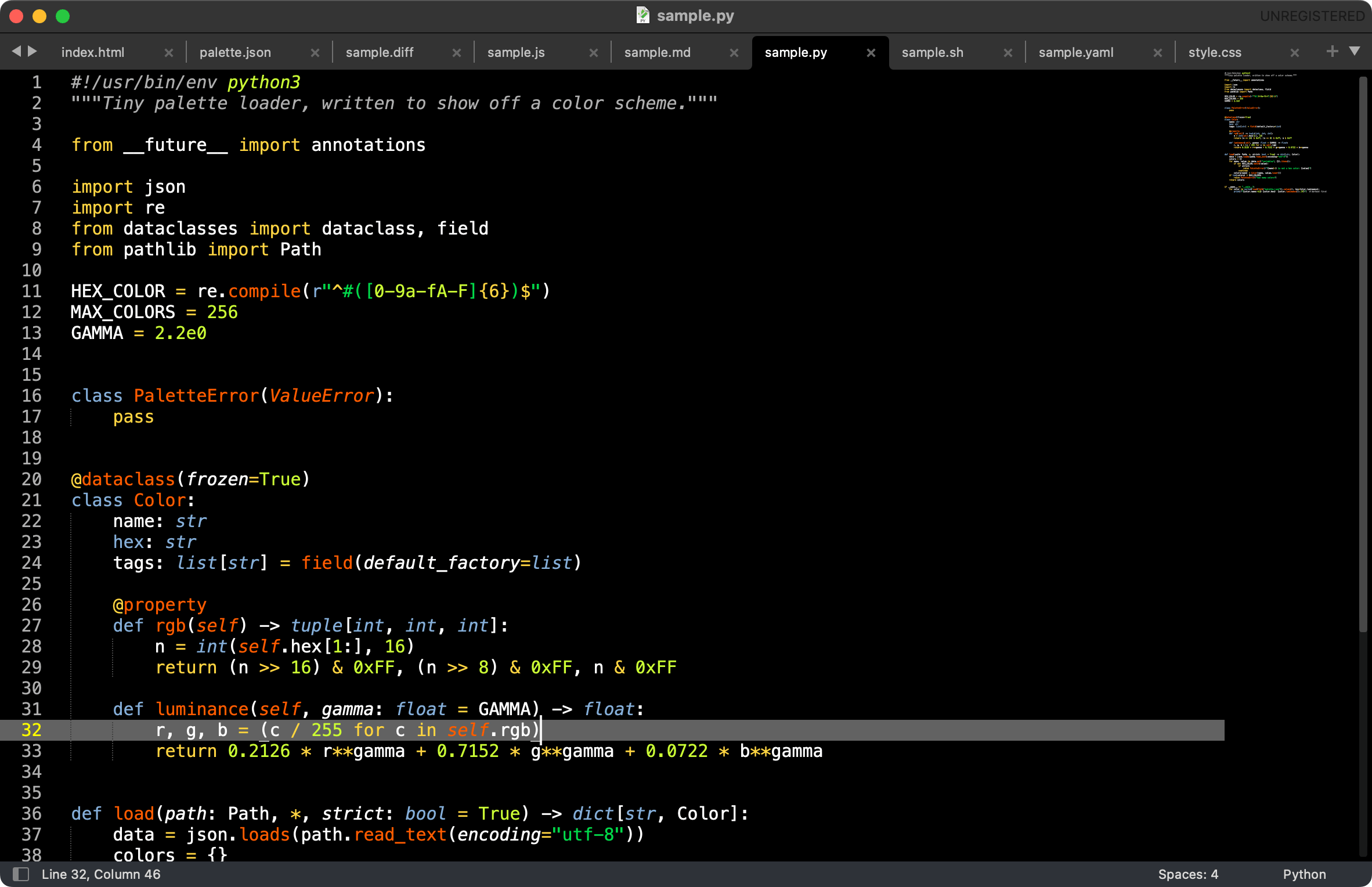 Python |
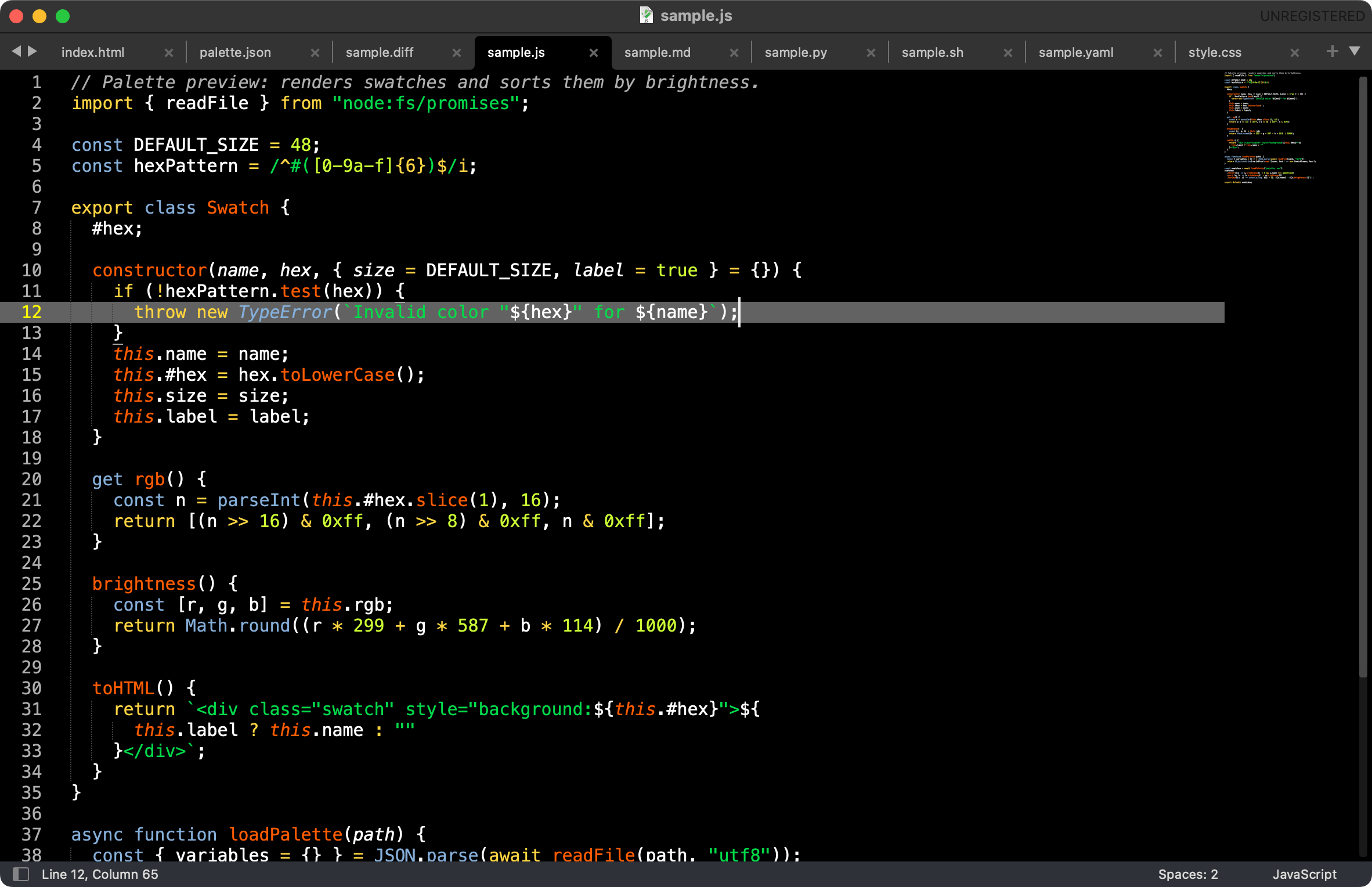 JavaScript |
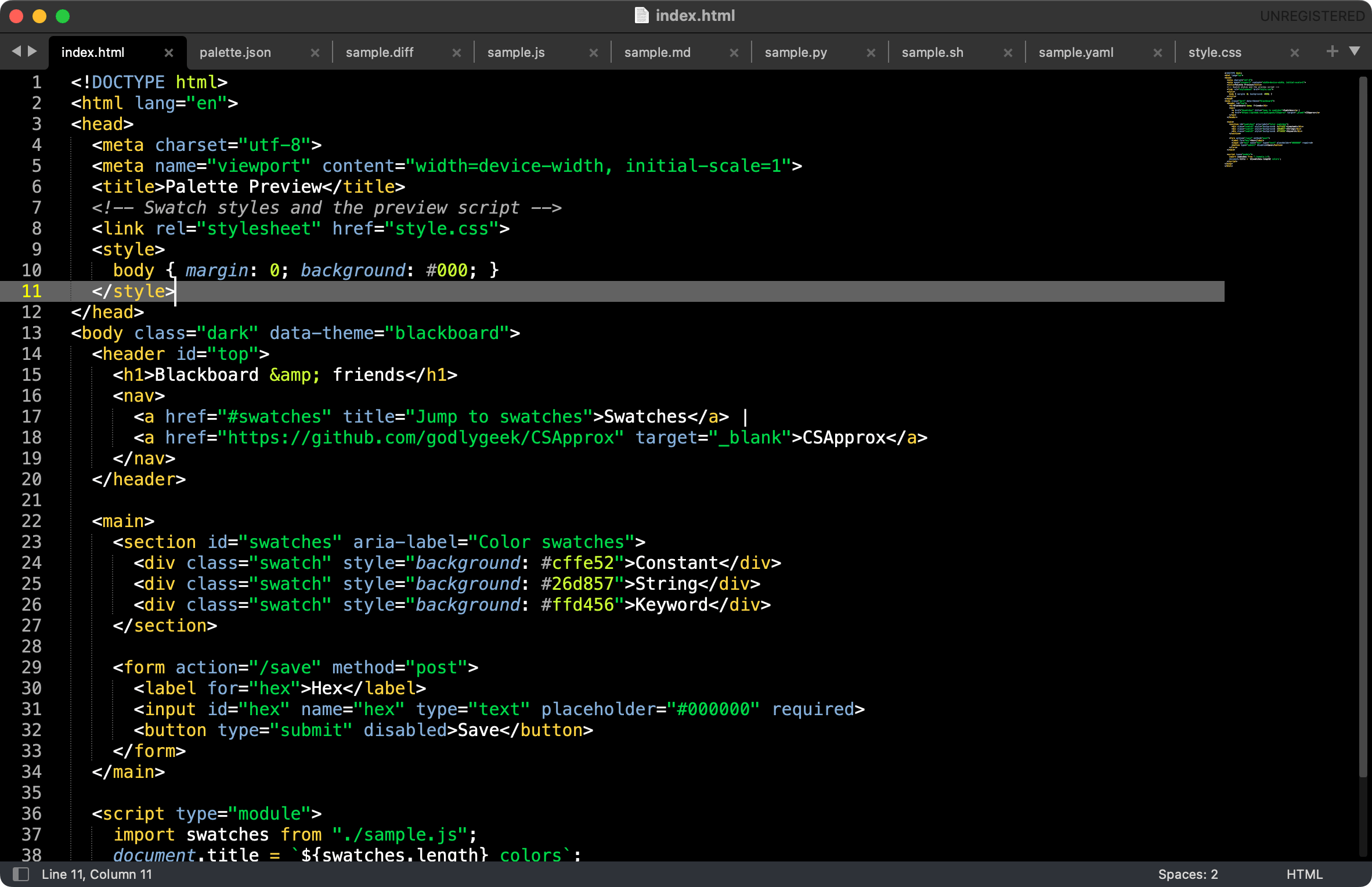 HTML |
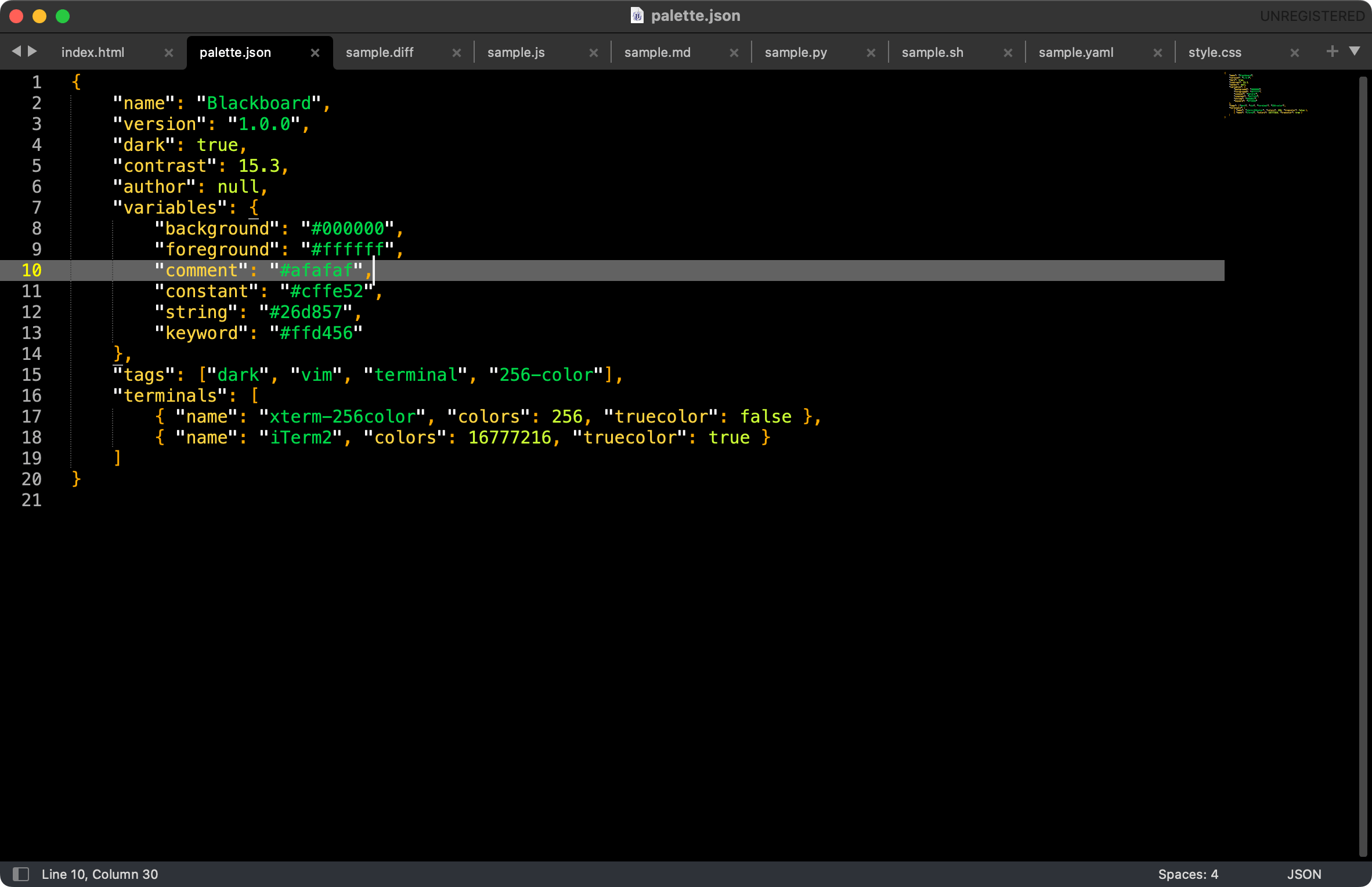 JSON |
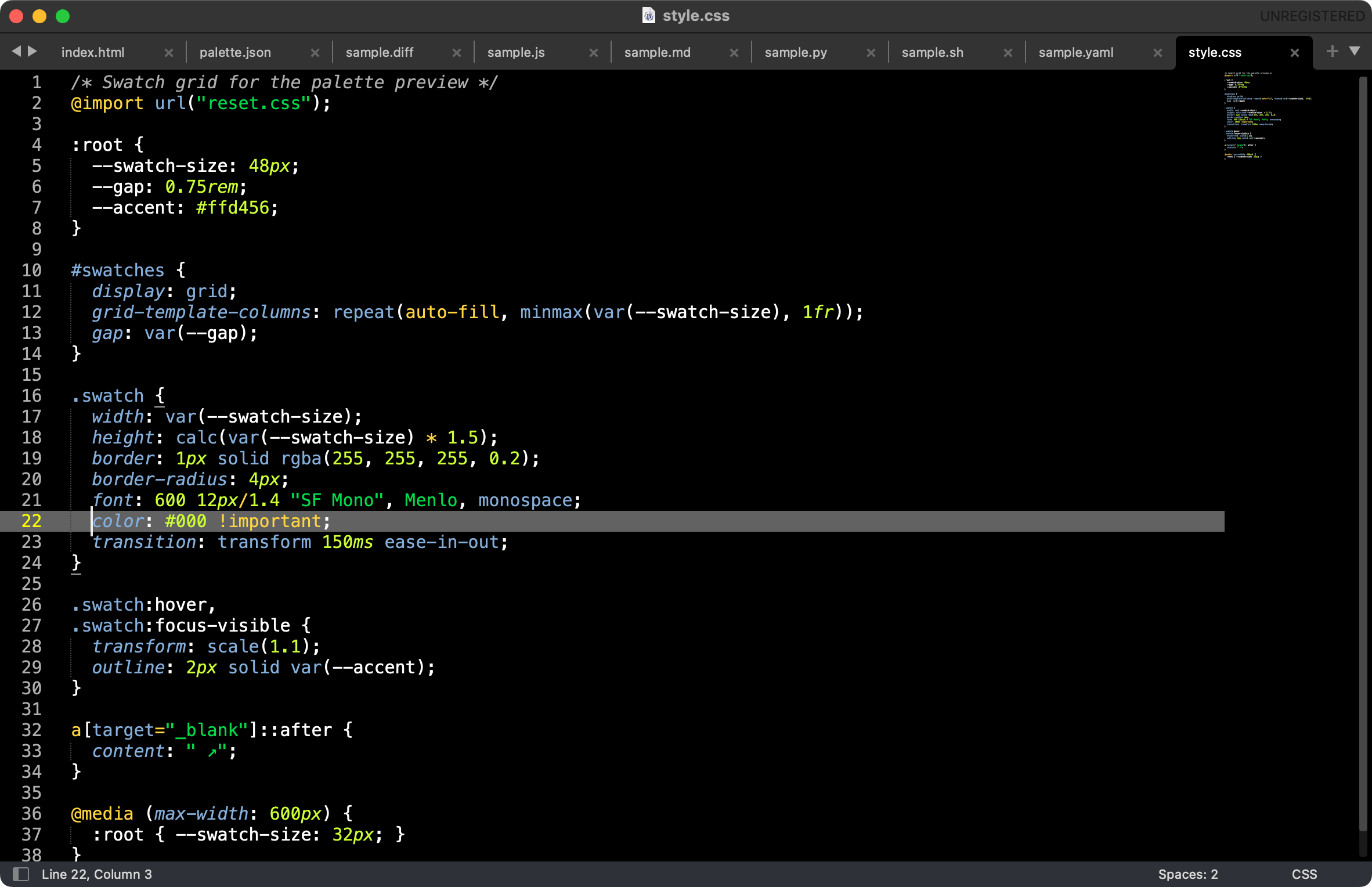 CSS |
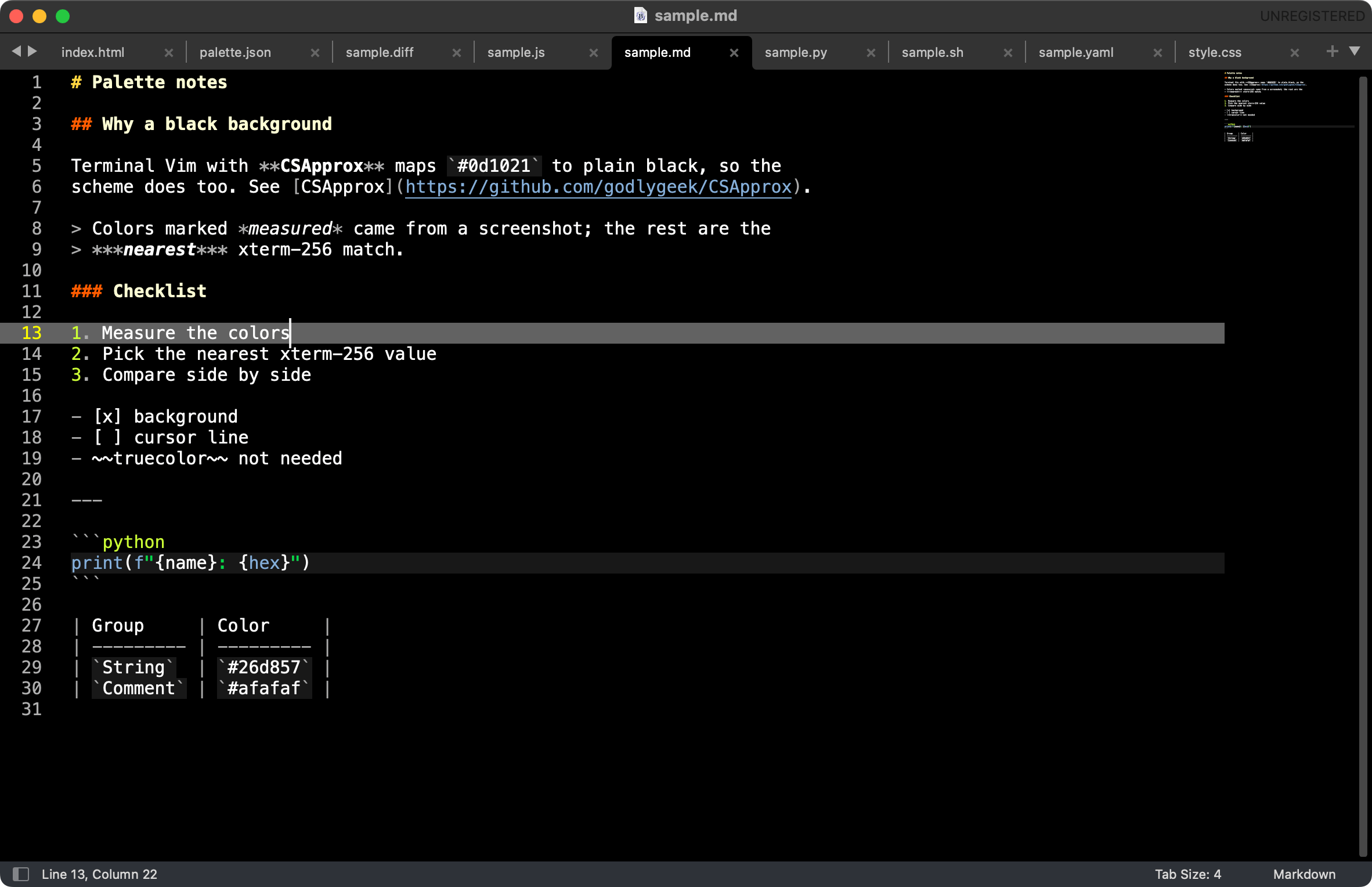 Markdown |
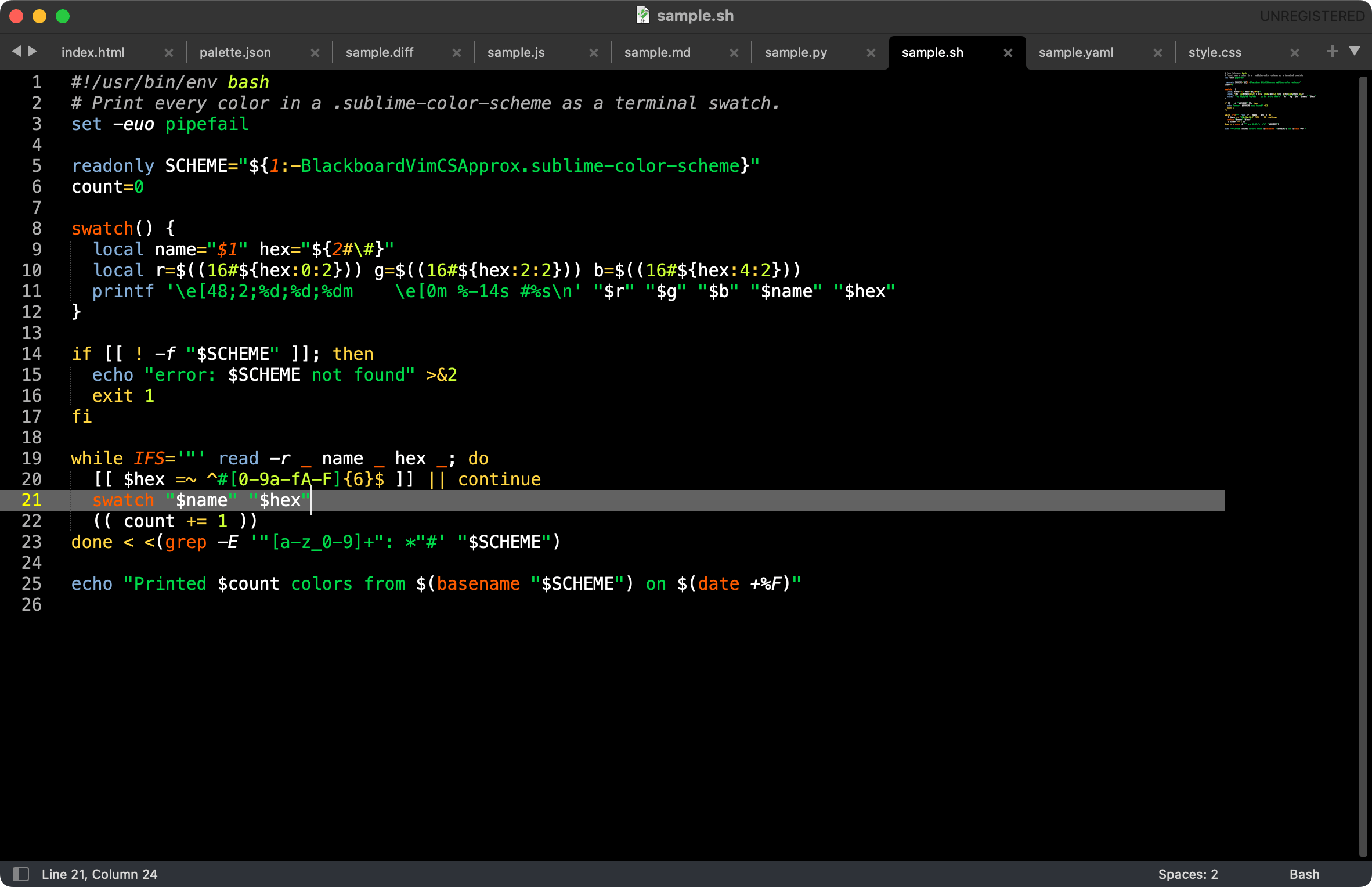 Bash |
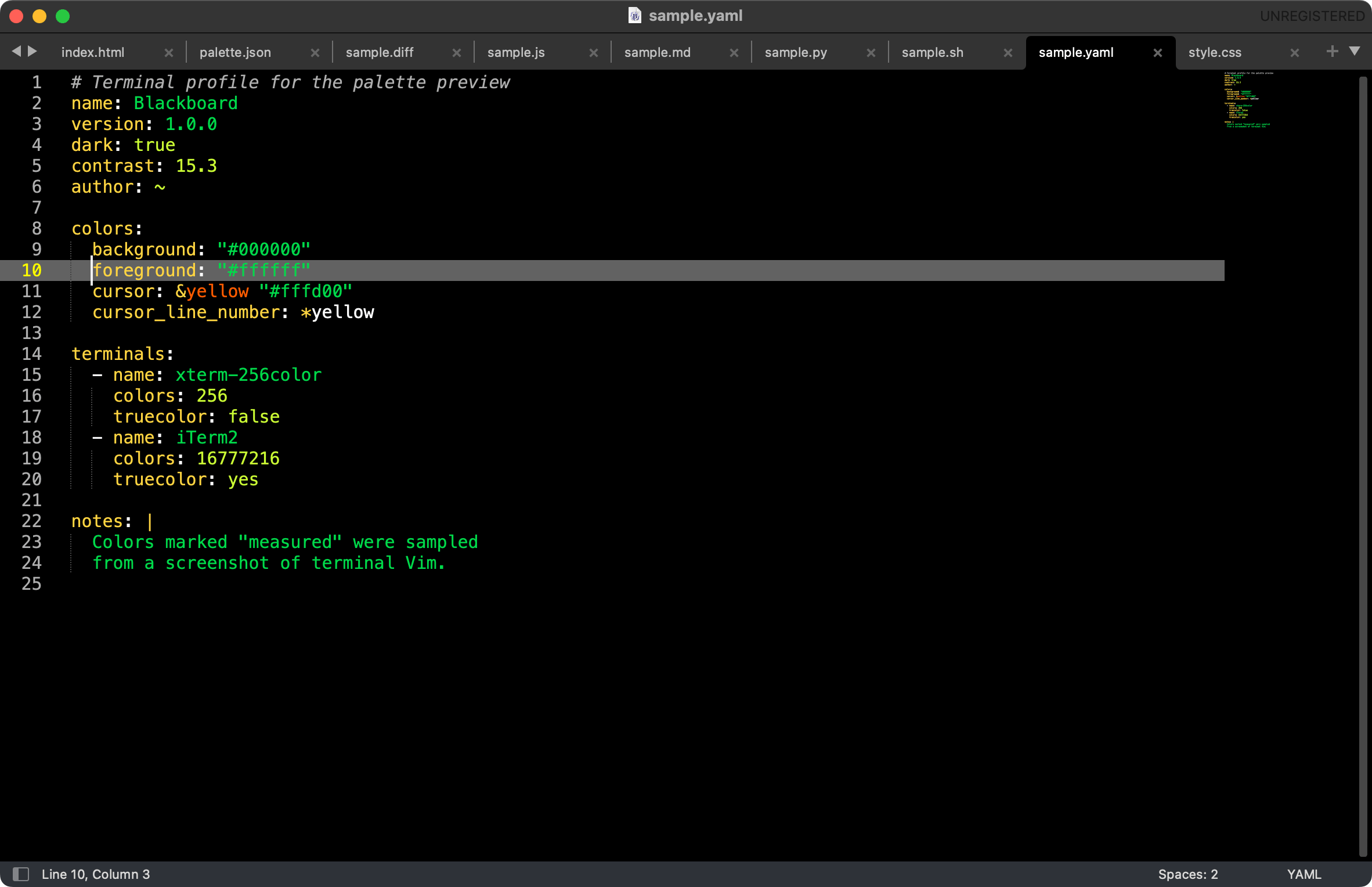 YAML |
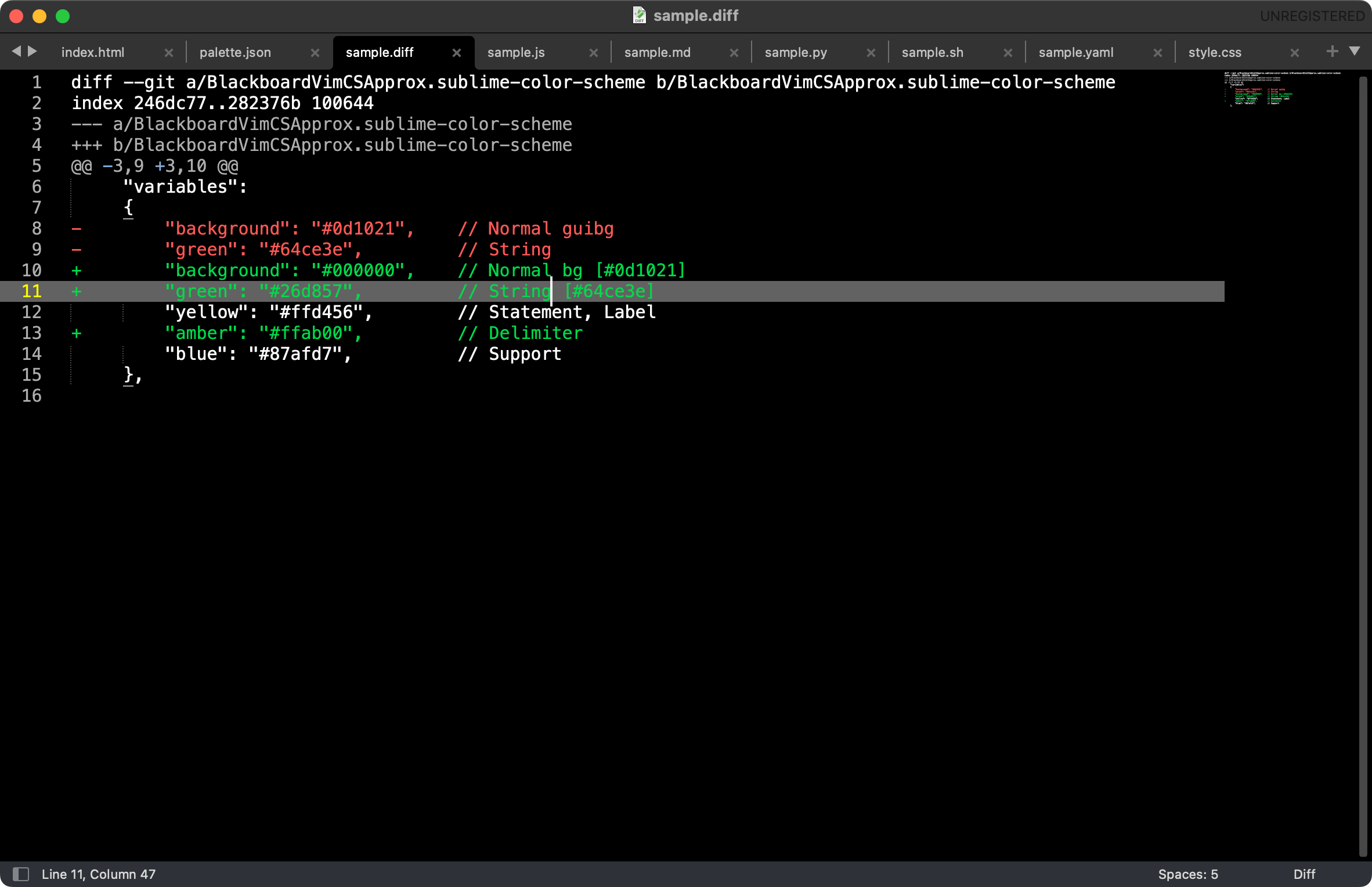 Diff |
A Sublime Text color scheme that matches a Vim
blackboard.vim
color file. Several different Vim schemes share that name. This is the one with
Entity/Support groups and a #0d1021 background, not Ben Wyrosdick's
vim.org script 2280. Its
structure (rule set and scopes) comes from Sublime Text's built-in Monokai
scheme.
This is a different scheme from the older
Theme - Vim Blackboard
package (2013). That package says up front that its colors were "changed to
resemble the default Vim colors used on dark terminals in various Linux distros
from the late 90s and early 00s", and it also ships a UI theme. This package is
only a color scheme, and it is a direct port of a blackboard.vim as it renders in
a 256-color terminal. The idea is similar, but the colors are quite different.
The name is a nod to how long this look has been around: from TextMate's Blackboard, to Vim, to terminal Vim through CSApprox, and now to Sublime Text. The goal is to keep it alive and easy to install.
Palette
blackboard.vim is written with GUI colors. In terminal Vim, the
CSApprox plugin maps them to the 256-color
palette, so what you actually see differs from the hex values in the file (the
background becomes black, for example). This scheme matches the terminal
rendering. Colors marked "measured" were sampled from a screenshot of terminal
Vim. The rest are the nearest xterm-256 color to the GUI value.
| Vim group | GUI value | Used here | Source | Used in Sublime for |
|---|---|---|---|---|
Normal bg |
#0d1021 |
#000000 |
measured | background, gutter |
Normal fg |
#ffffff |
#ffffff |
measured | text, punctuation, JSON quotes |
Comment, LineNr |
#aeaeae |
#afafaf |
measured | comments (italic), line numbers |
Constant |
#d7fa41 |
#cffe52 |
measured | numbers, booleans, language constants |
String |
#64ce3e |
#26d857 |
measured | strings, inserted diff lines |
Statement / Label |
#f8de33 |
#ffd456 |
measured | keywords, operators, mapping keys, tags |
Delimiter |
#ffab00 |
measured | JSON braces and brackets | |
CursorLine |
#626262 |
measured | current line highlight | |
CursorLineNr |
#fffd00 |
measured | current line number | |
Entity |
#fa6513 |
#ff5f00 |
xterm | function/class names, function calls |
Support |
#8fa6cd |
#87afd7 |
xterm | library functions/types, storage types |
Title |
#f6f3e8 |
#ffffd7 |
xterm | markup headings (bold) |
NonText / SpecialKey |
#808080 |
#808080 |
xterm | invisibles |
VertSplit |
#444444 |
#444444 |
xterm | indent guides |
Colors added in the same vein (the Vim file does not define them):
#253b76: selection. Vim usesVisual gui=reverse, which in Sublime would hide syntax colors in the selected text.#ff5c5c: errors, misspellings, deleted diff lines.#9d1e15: background for invalid code.#b48ae6: background for deprecated code.
Install
Package Control
- Command Palette → Package Control: Install Package → BlackboardForever.
- Press Cmd+Shift+P on Mac (Ctrl+Shift+P on Windows/Linux) to open the Command Palette.
- Type
instaand press Enter on Package Control: Install Package. - Type
blackboardfor, pick BlackboardForever with ↑/↓, and press Enter to install it.
- Preferences → Select Color Scheme… → choose BlackboardForever.
- Open the Command Palette again (Cmd+Shift+P on Mac or
Ctrl+Shift+P on Windows/Linux), type
color sch, and press Enter on UI: Select Color Scheme. - Type
blackboardfor. Moving with ↑/↓ previews each scheme live. Press Enter to apply it.
- Open the Command Palette again (Cmd+Shift+P on Mac or
Ctrl+Shift+P on Windows/Linux), type
Manual
- In Sublime Text: Preferences → Browse Packages…
- Copy
BlackboardForever.sublime-color-schemeinto theUserfolder. - Preferences → Select Color Scheme… → choose BlackboardForever.
Or set it in Preferences.sublime-settings:
"color_scheme": "BlackboardForever.sublime-color-scheme"
License
The Unlicense (public domain). See LICENSE.